🔖 Scenario 1: Passes on inbox page display "Unverified"
Reason: When the payment for the pass purchased by the customer online has not been verified by the studio, it means the payment is pending verification.
Solution: The studio proceeds to "Verify Payment" in the "Dashboard > Payments > Unverified Payment" on the admin page after receiving the payment.
▶ Tutorial link: How to Verify Payments?
🔖 Scenario 2: Class Passes in the Customer's Inbox Display "Not Activated"
Reason: This indicates that the pass has been purchased but not yet activated.
Solution: Please use the pass directly to activate it.
▶ [Tutorial Link] How to change the activation date of pass.
🔖 Scenario 3: During Booking, Pass Display "Pass Not Activated"
Reason: This indicates that the pass has been purchased but not yet activated.
Solution: Please use the pass directly to activate it.
▶ [Tutorial Link] How to change the activation date of pass.
🔖 Scenario 4: During Booking, Pass Displays "Pass Not Accept"
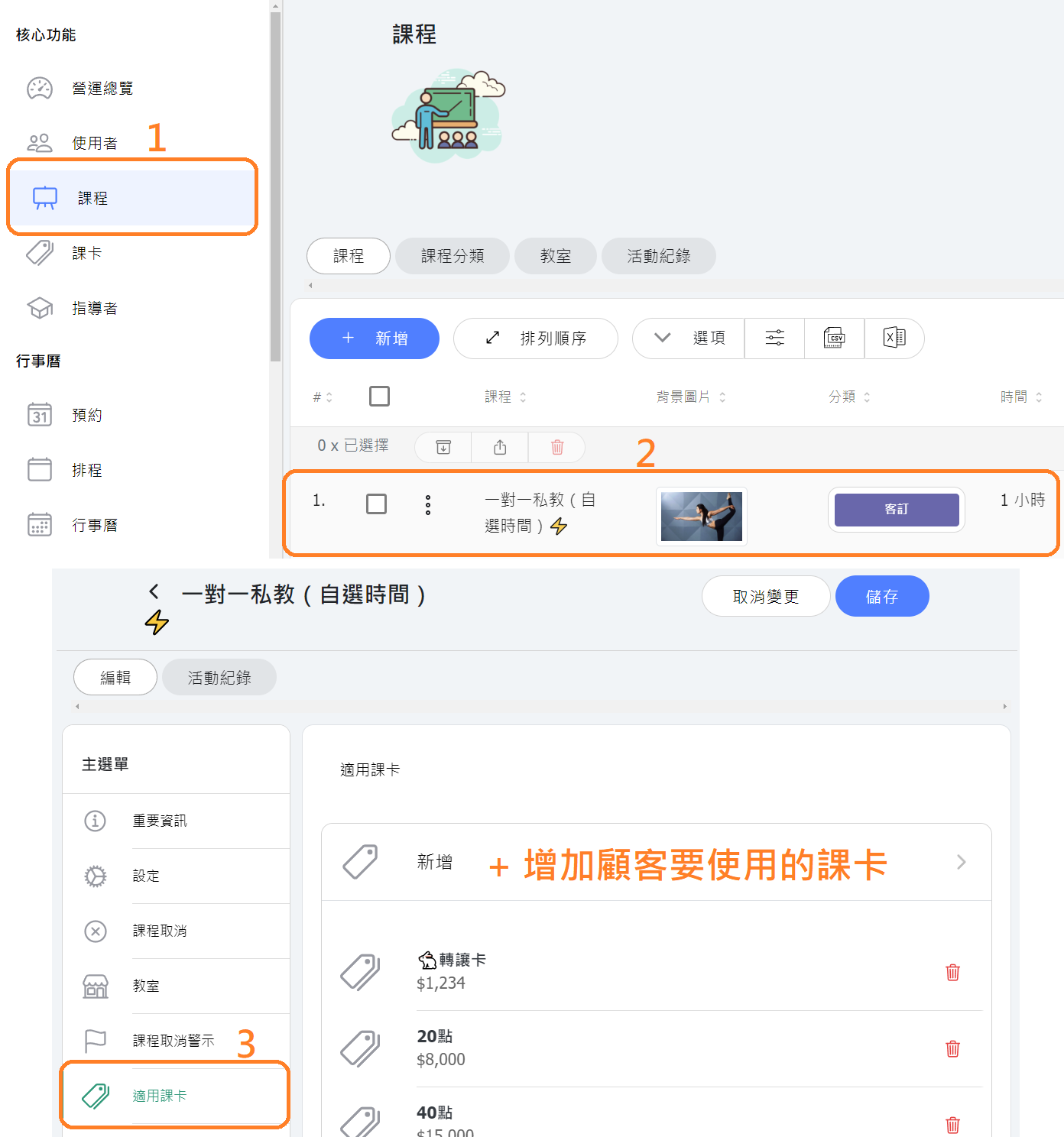
🔖 Scenario 5: During Booking, Pass Displays "pass expires before class"
Reason: This indicates that the pass has expired before this class.
Solution: The administrator needs to extend the expiration date of the pass.
▶ [Tutorial Link] Where admin can change the date of pass.
🔖 Scenario 6: During Booking, Pass Displays "pass purchased after class"
Reason: This indicates that the pass cannot be used to reserve class before the purchase date.
Solution: The administrator needs to adjust the purchase date of the pass to an earlier date than the class.
Reminder: All passes cannot be used to reserve classes which date is earlier than the purchase date.
▶ [Tutorial Link] Where admin can change the date of pass.
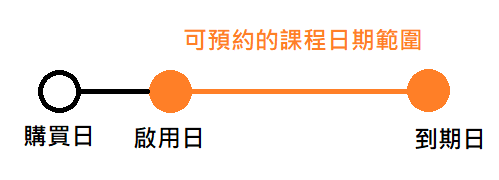
🔖 Scenario 7: During Booking, Pass Displays "Class Pass Activation Date is After This Class"
Reason: This indicates that the pass is set to be activated after a specific date.
Solution: The administrator can consider adjusting the activation date of the pass to allow earlier use by customers.
▶ [Tutorial Link] Where admin can change the date of pass.
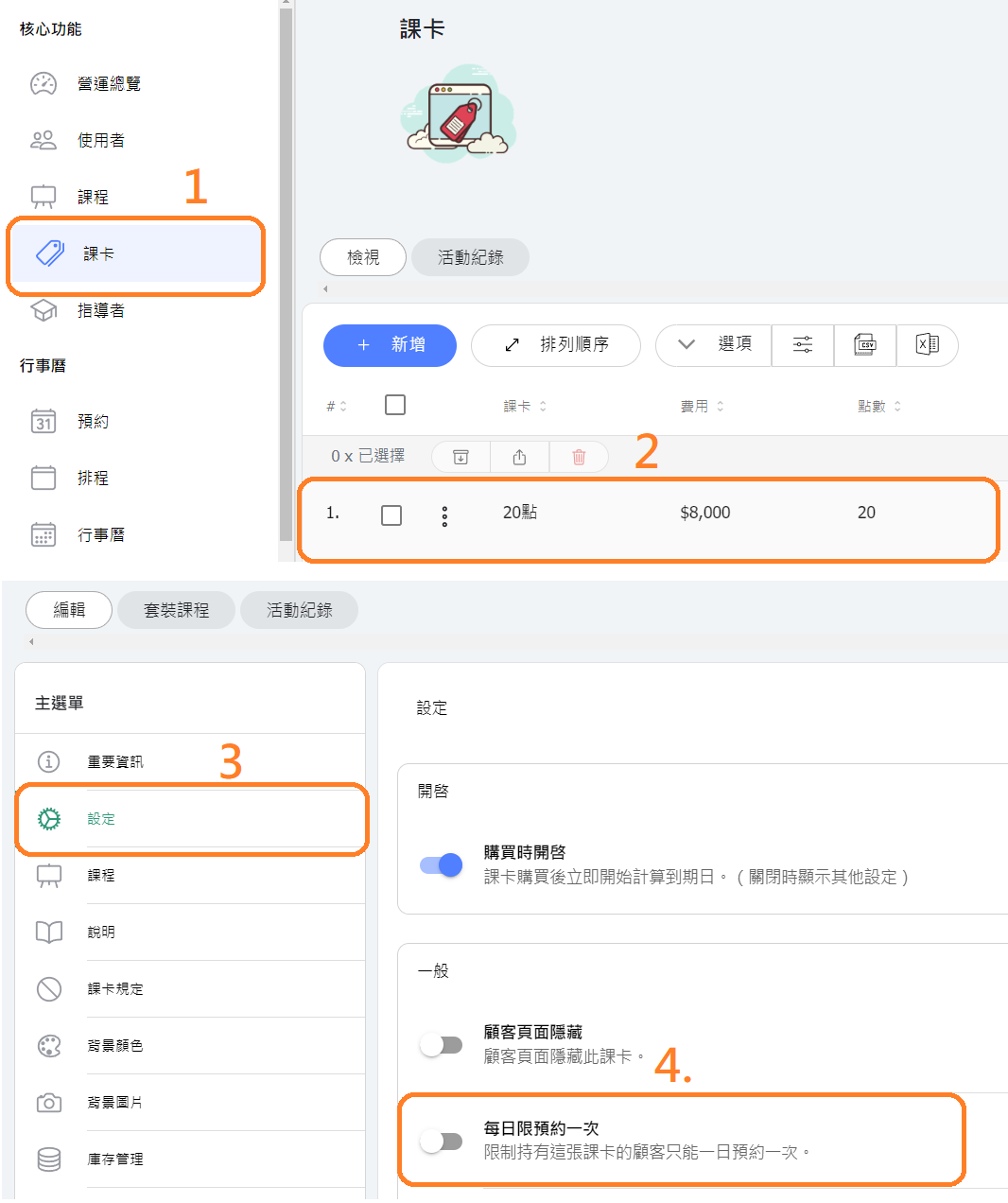
🔖 Scenario 8: During Booking, Pass Displays "One Reservation Per Day Only"
Reason: This indicates that the pass can only be used for one reservation per day.
Solution: The administrator can consider turning off the "one reservation per day" option in the pass settings.
[Instructions]
-
Select Course Cards from the left menu.
-
Select a course card.
-
Click Settings.
-
Turn on the Limit to One Booking Per Day toggle.