Scenario 1: Troubleshooting Method When Customers Inquire About Invisibility of Some Classes
Common reasons:
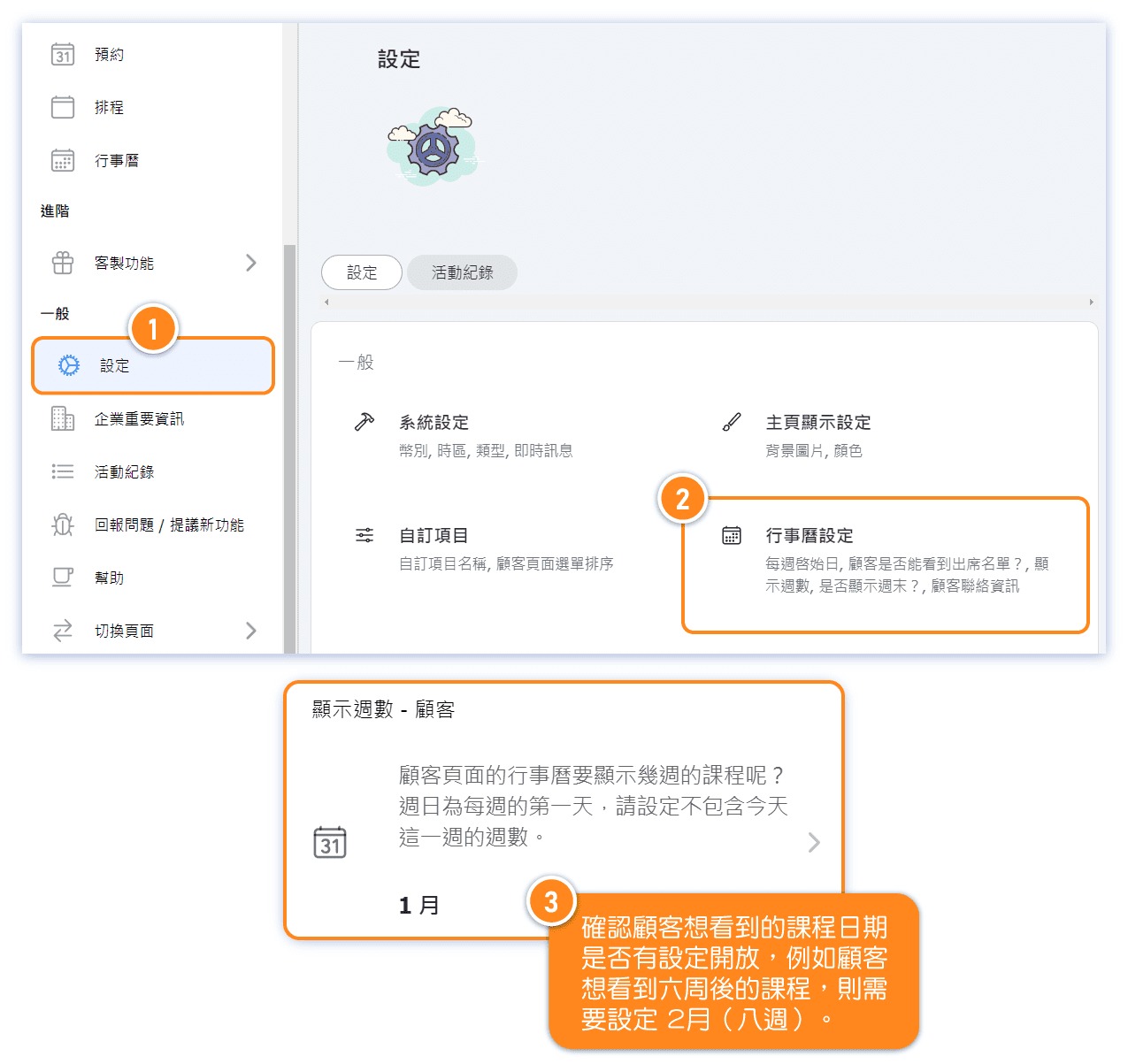
1. The "Weeks in Future - Customers" setting in the calendar is not open to a certain date.
【Solution】Adjust the "Weeks in Future - Customers" option to a later time.
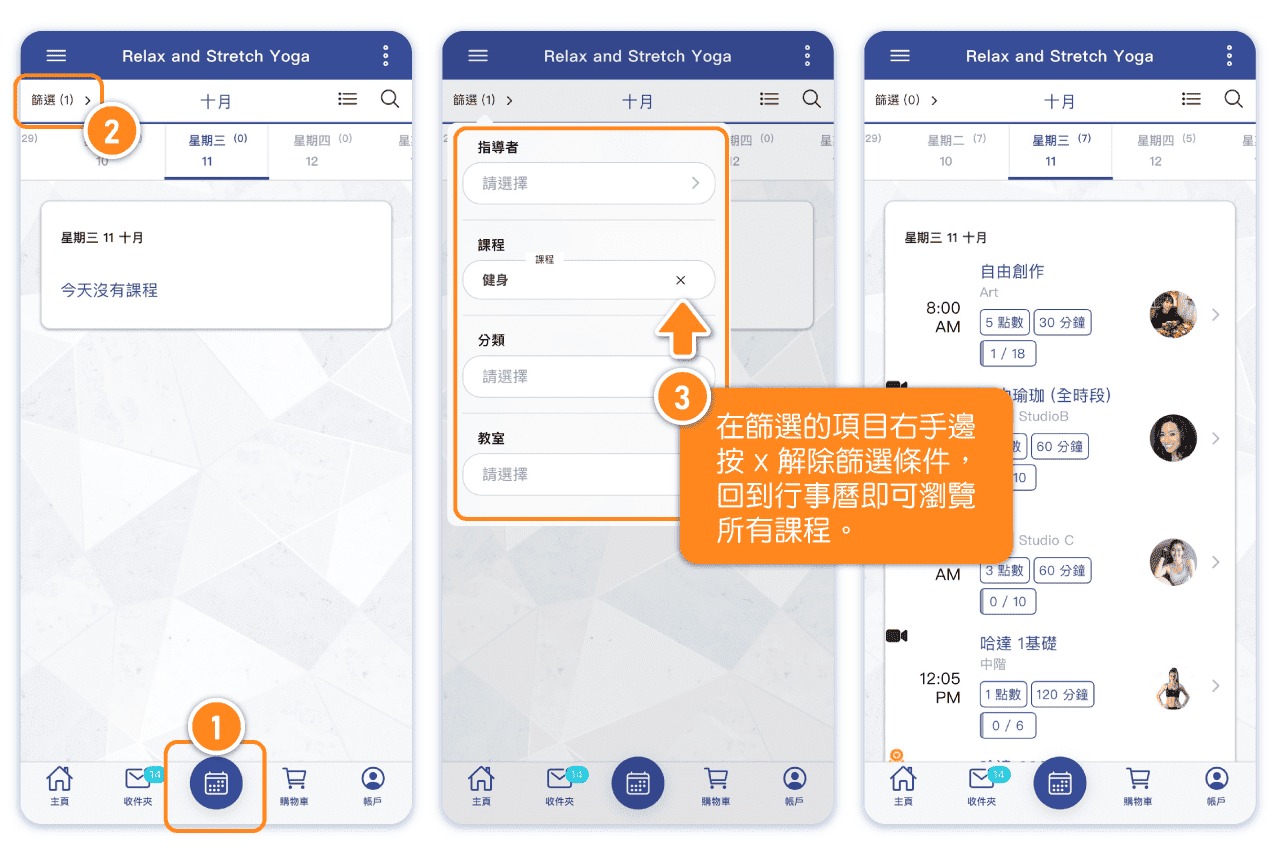
2.Customers forget to remove the filter they applied in the calendar.
【Solution】Remove the filter conditions in the calendar.
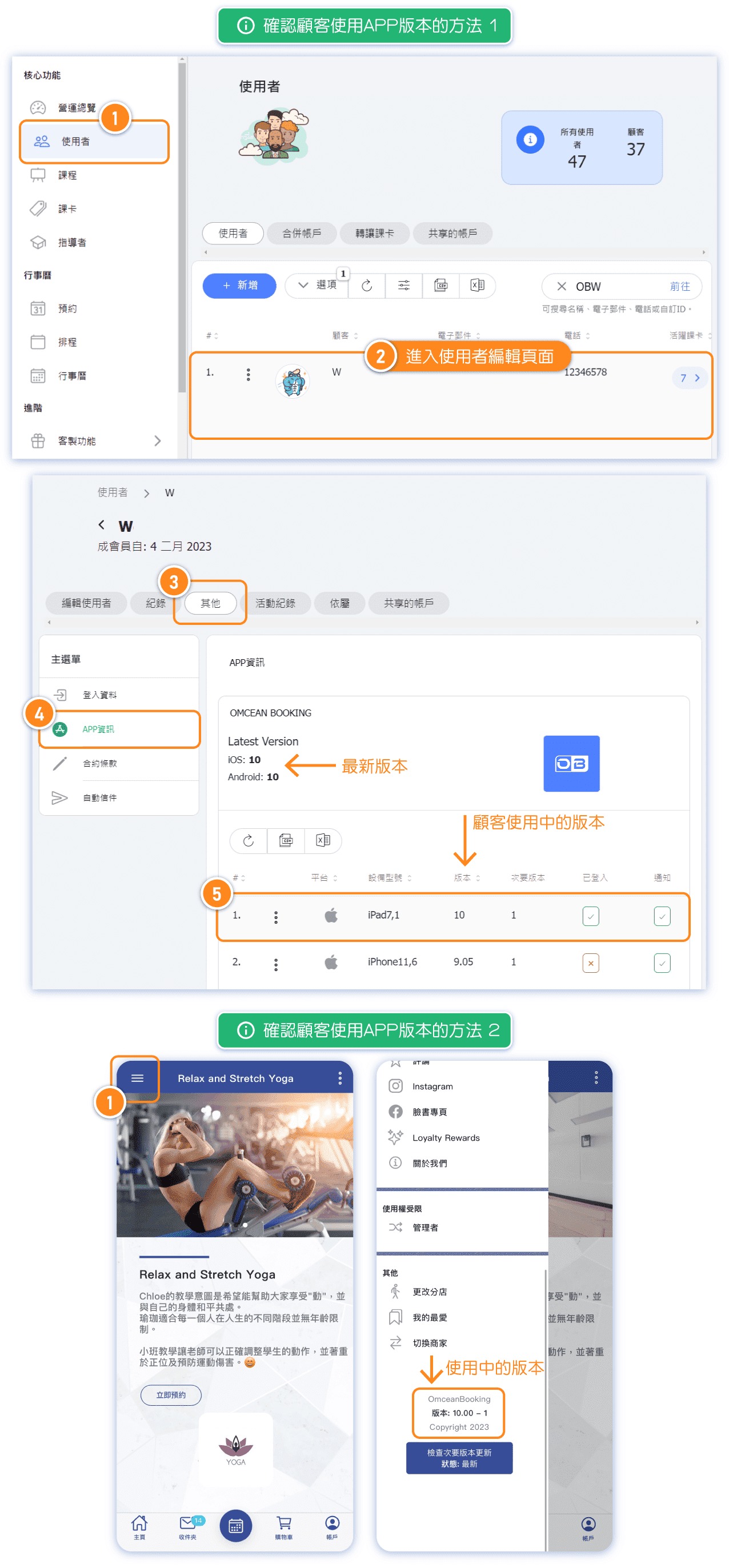
3.The customer's app version is outdated, and the outdated version has stopped receiving updates.
【Solution】Check the version of the app the customer is using, and if necessary, update it from the App Store / Play Store.
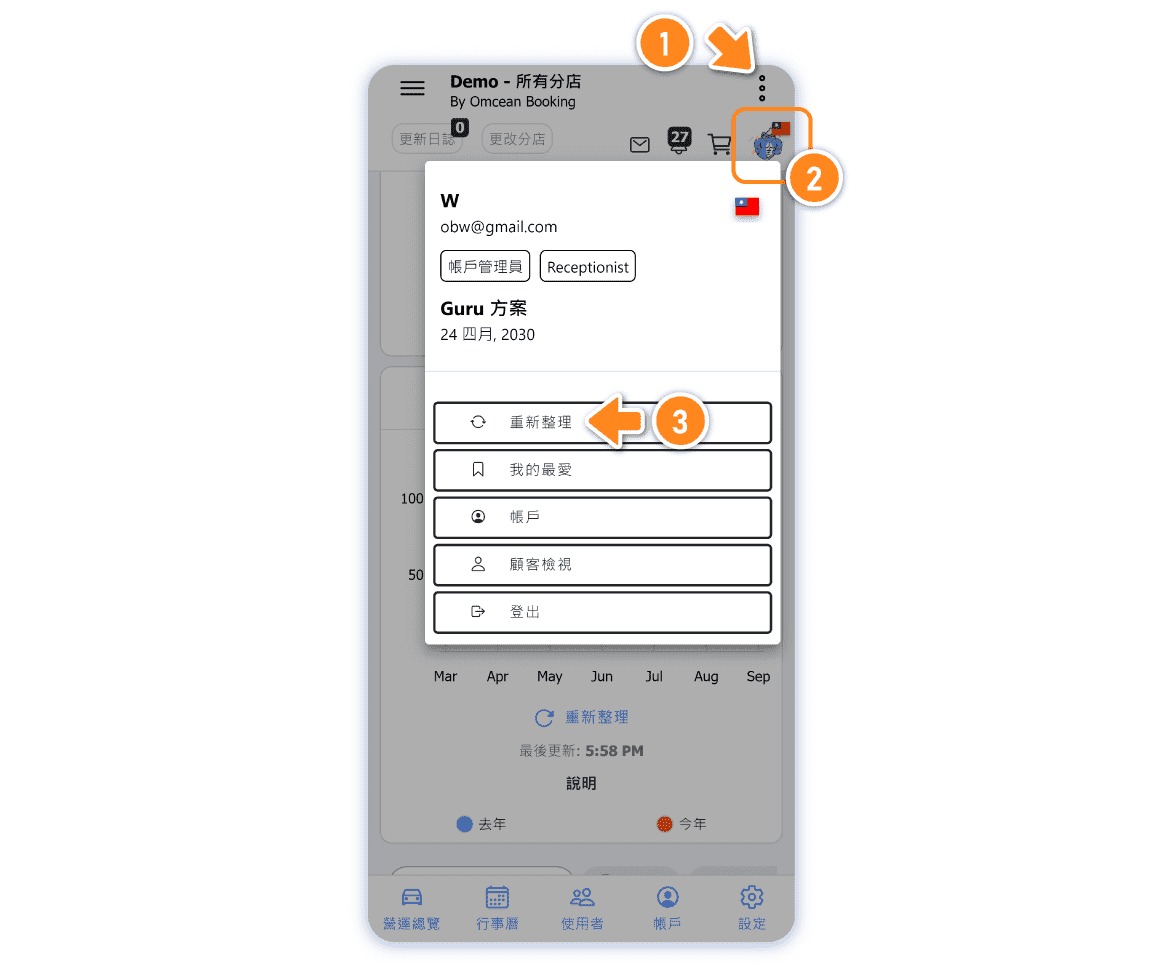
4.The customer's internet connection is unstable, or the app has been idle for some time.
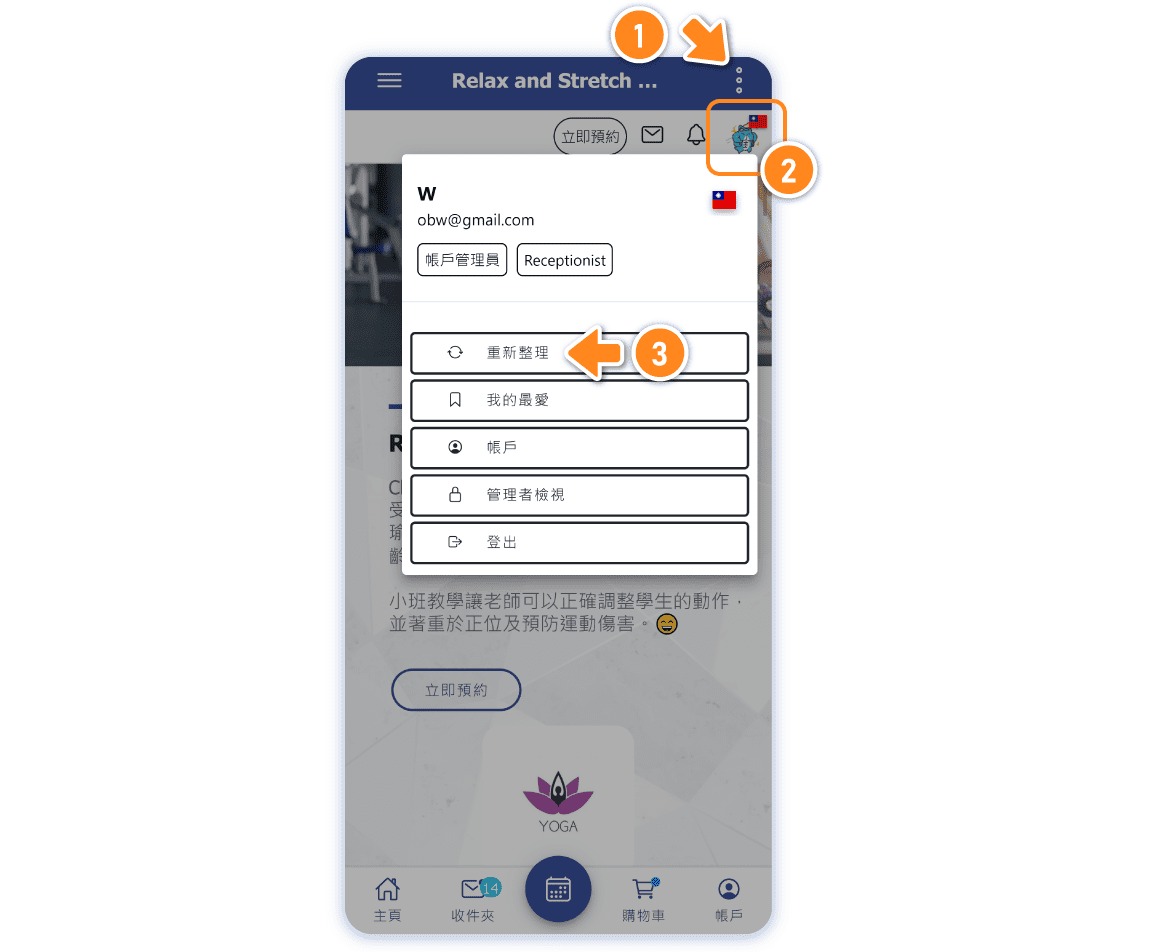
【Solution】Ensure a stable internet connection, fully close the app, and reopen it. Alternatively, use the "Refresh" option in the top right corner of the app to immediately refresh and synchronize the system data.
Scenario 2: Troubleshooting Method When Administrators Cannot See Some Classes
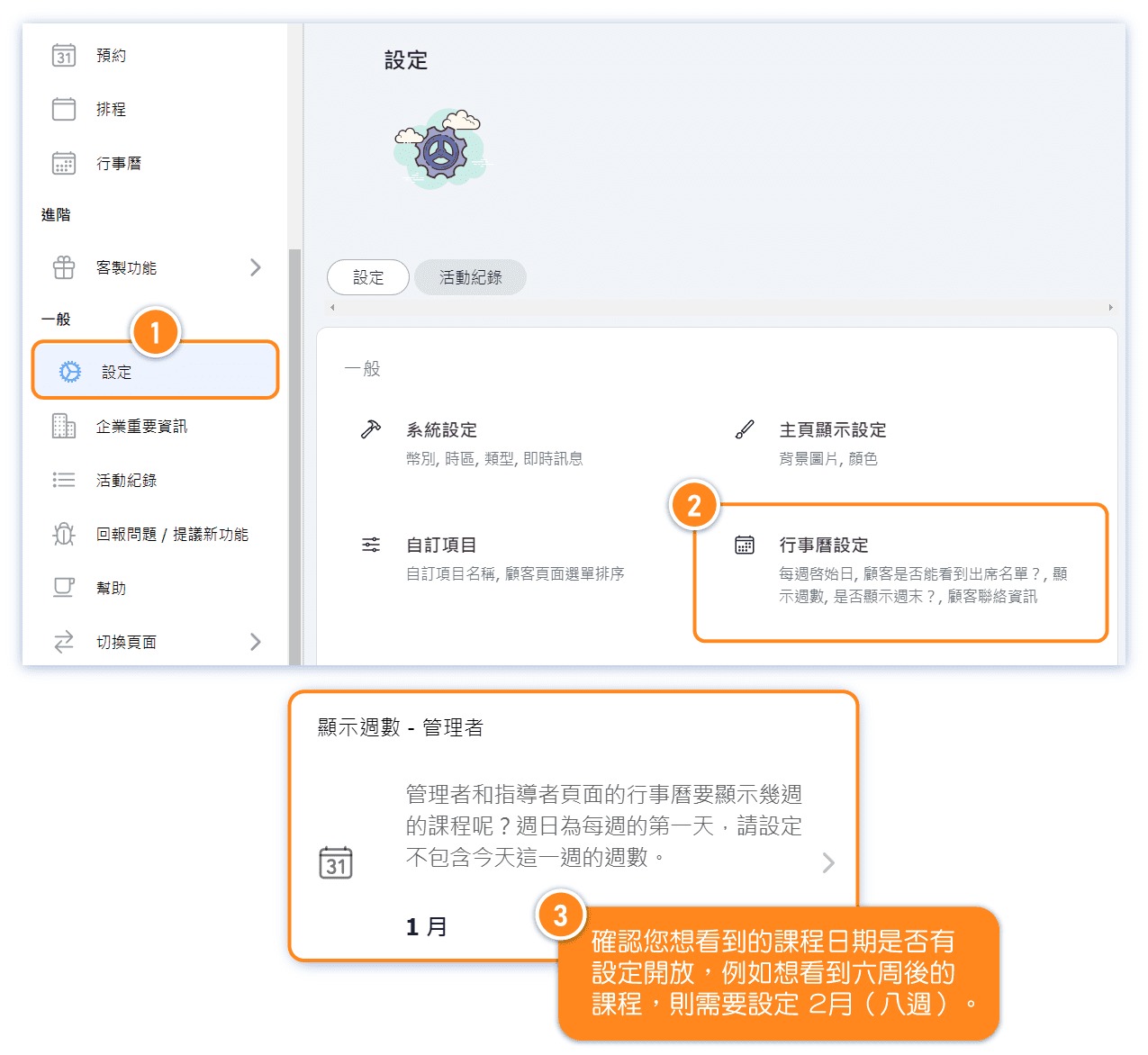
1. The "Weeks in Future - Admin" setting in the calendar is not open to a certain date.
【Solution】Adjust the "Display Weeks - Admin" option to a later time.
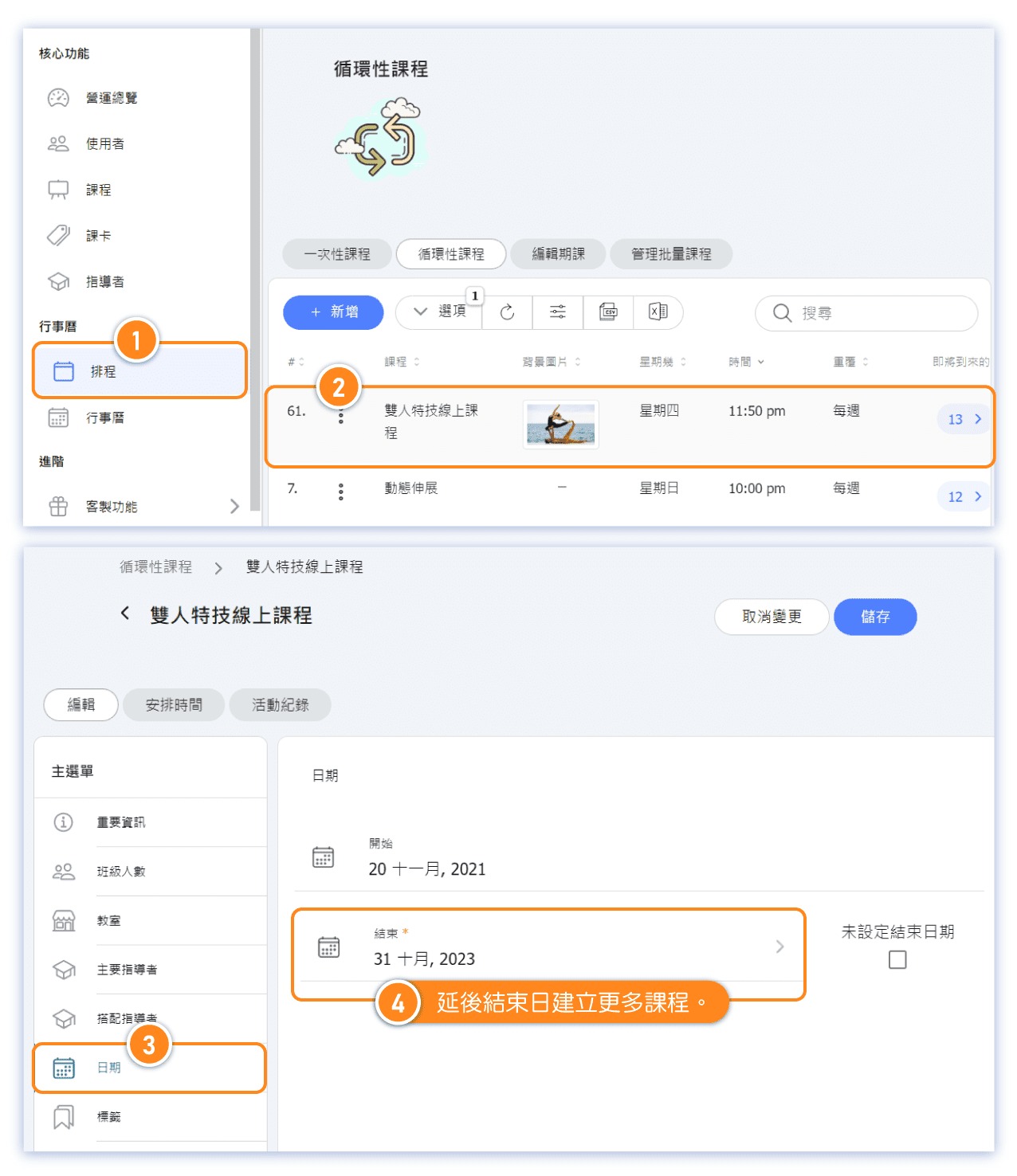
2. Repeating Classes have an end date set, or schedule courses have not been scheduled.
【Solution】Extend the end date of repeating classes to create classes further into the future. Alternatively, ensure that schedule courses have been scheduled.
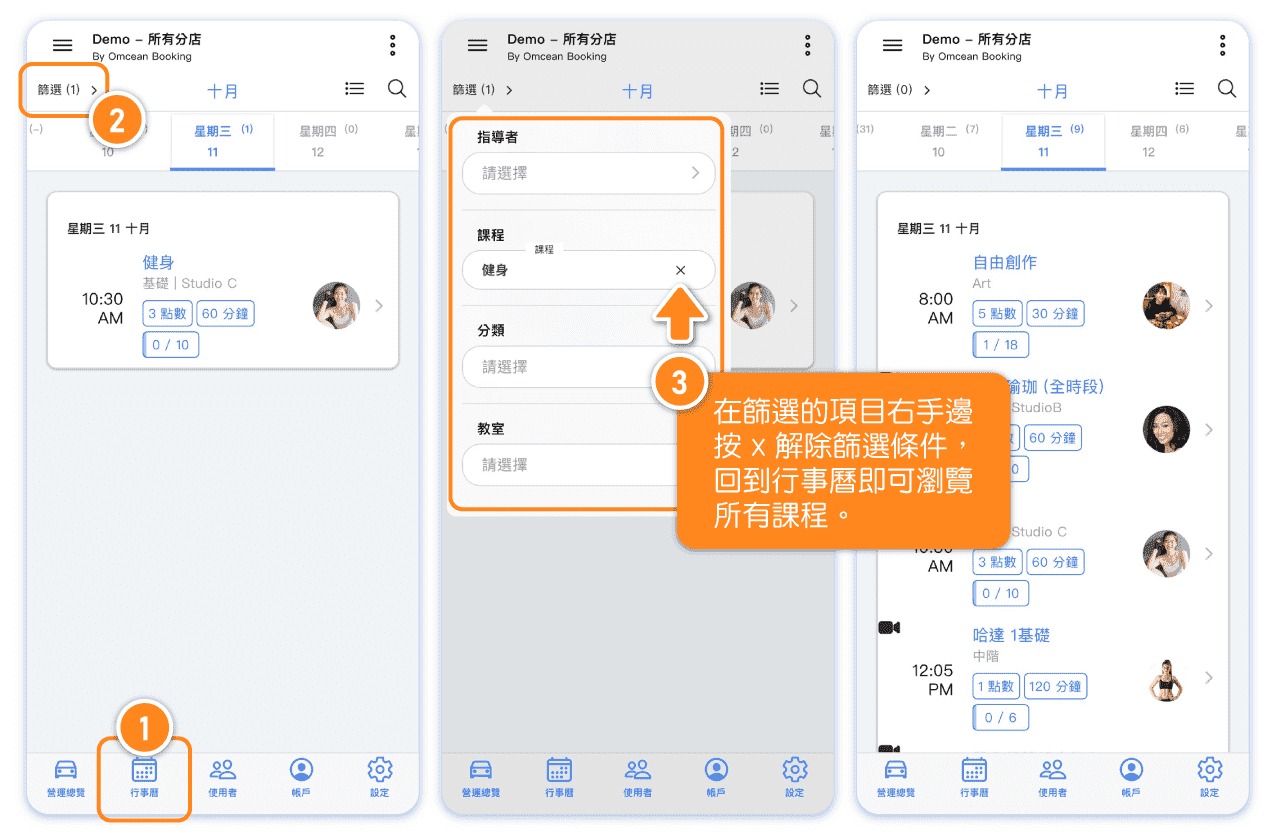
3. The "Filter" function was used during the previous calendar browsing session, but was not deactivated.
【Solution】Remove the filter conditions in the calendar.
4.The current app version is outdated, and the outdated version has stopped receiving updates.
【Solution】Check the version of the app in use, and if necessary, update it from the App Store / Play Store.
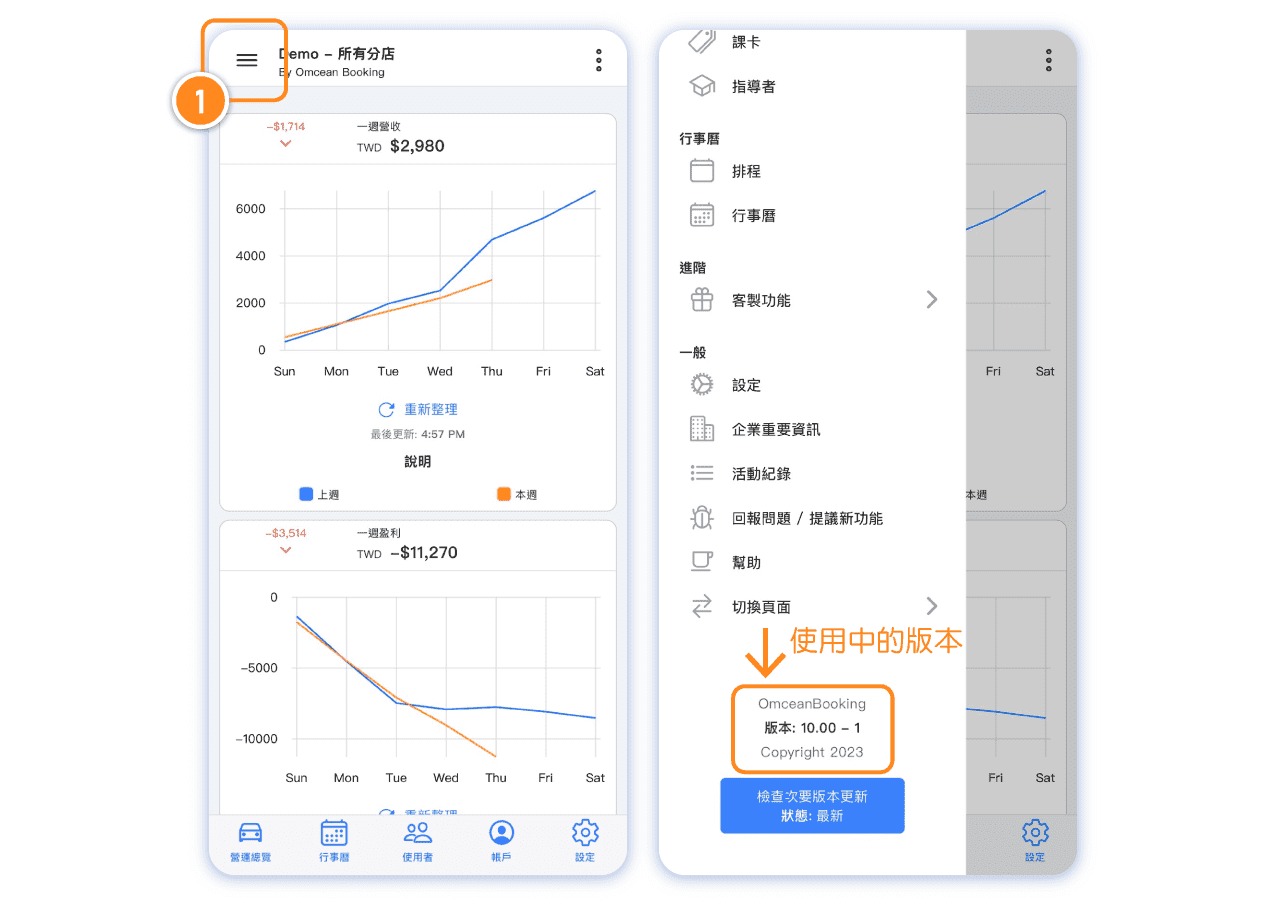
5.The internet connection is unstable, or the app has been idle for some time.
【Solution】Ensure a stable internet connection, fully close the app, and reopen it. Alternatively, use the "Refresh" option in the top right corner of the app to immediately refresh and synchronize the system data.