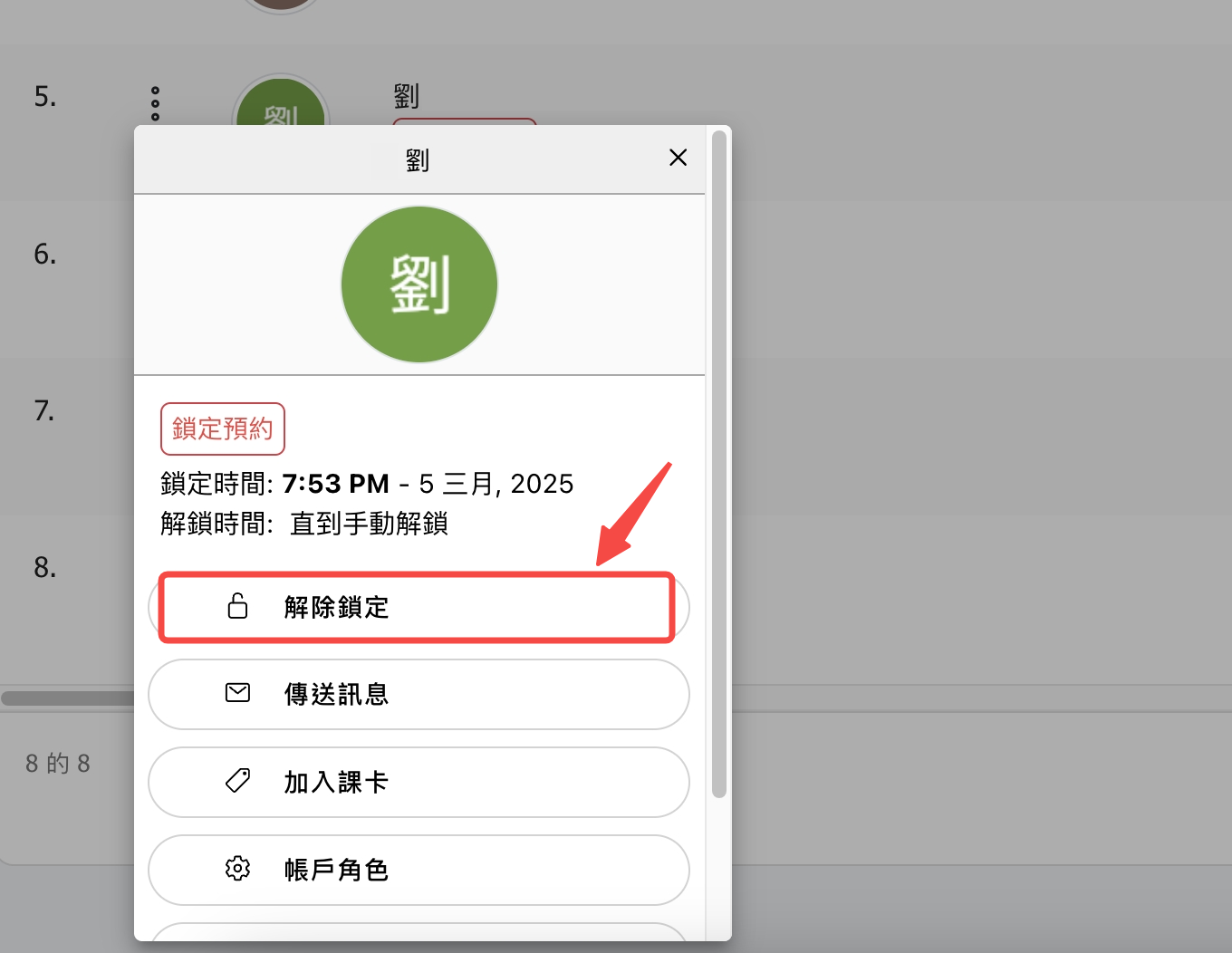
How to Set It Up - For Users Request Leave
If you want to restrict customers from booking during their leave period, you can use this feature to enforce it.
If you use "custom unlock time", unlock program runs every hour (e.g., if locked at 7:30 PM for 1 day, it will unlock next day at 8:00 PM).
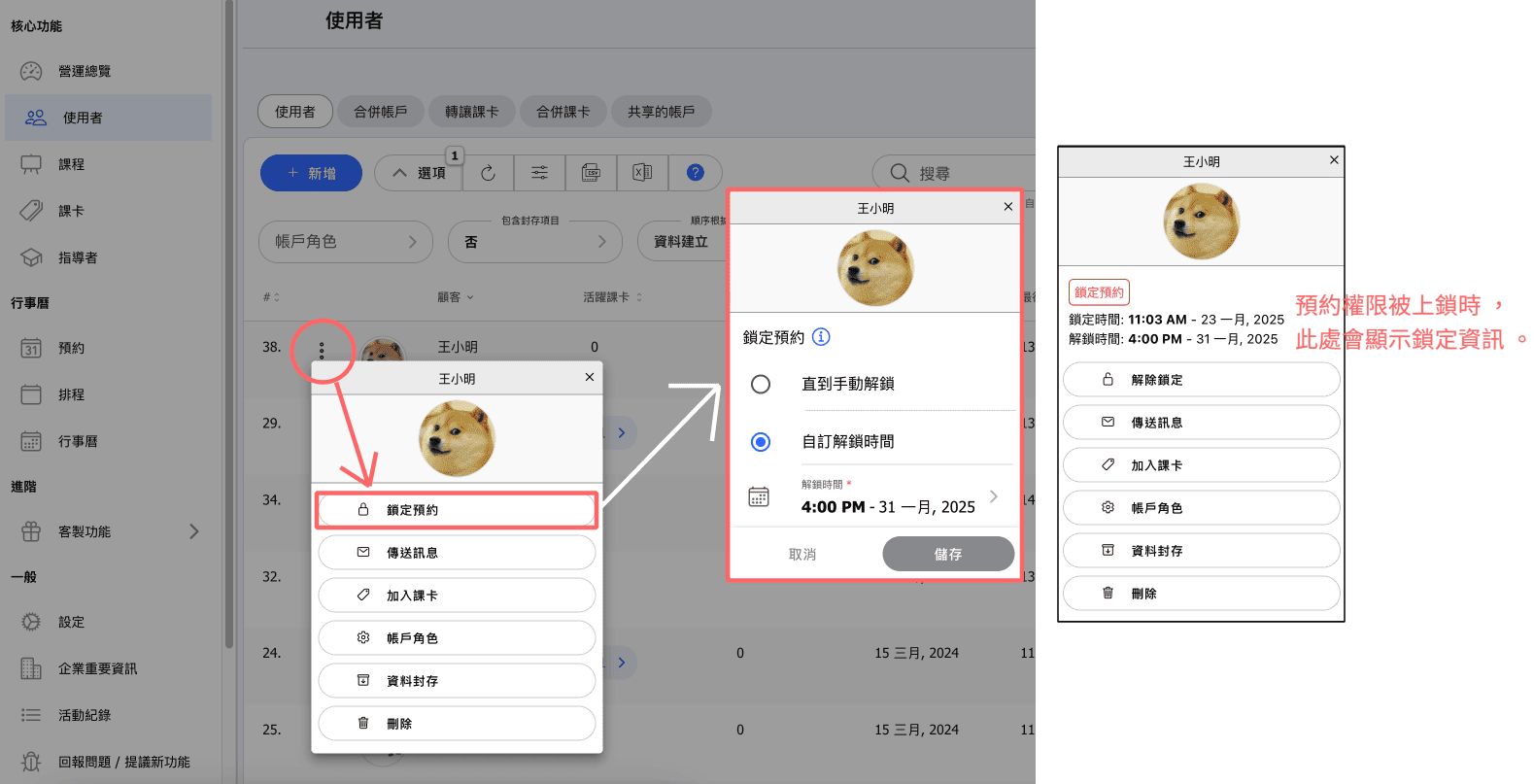
How to Set It Up - For Absences
Set a threshold for the number of absences within a specific period before booking privileges are restricted. Existing bookings will not be affected.
Absence count resets once the restriction is lifted.
- Lock Check: The system will verify absence counts every hour at the 40-minute mark and determine whether to apply a lock, e.g., 1:40, 2:40, 3:40, etc.
- Unlock Check: Unlock program runs every hour (e.g., if locked at 7:30 PM for 1 day, it will unlock next day at 8:00 PM).
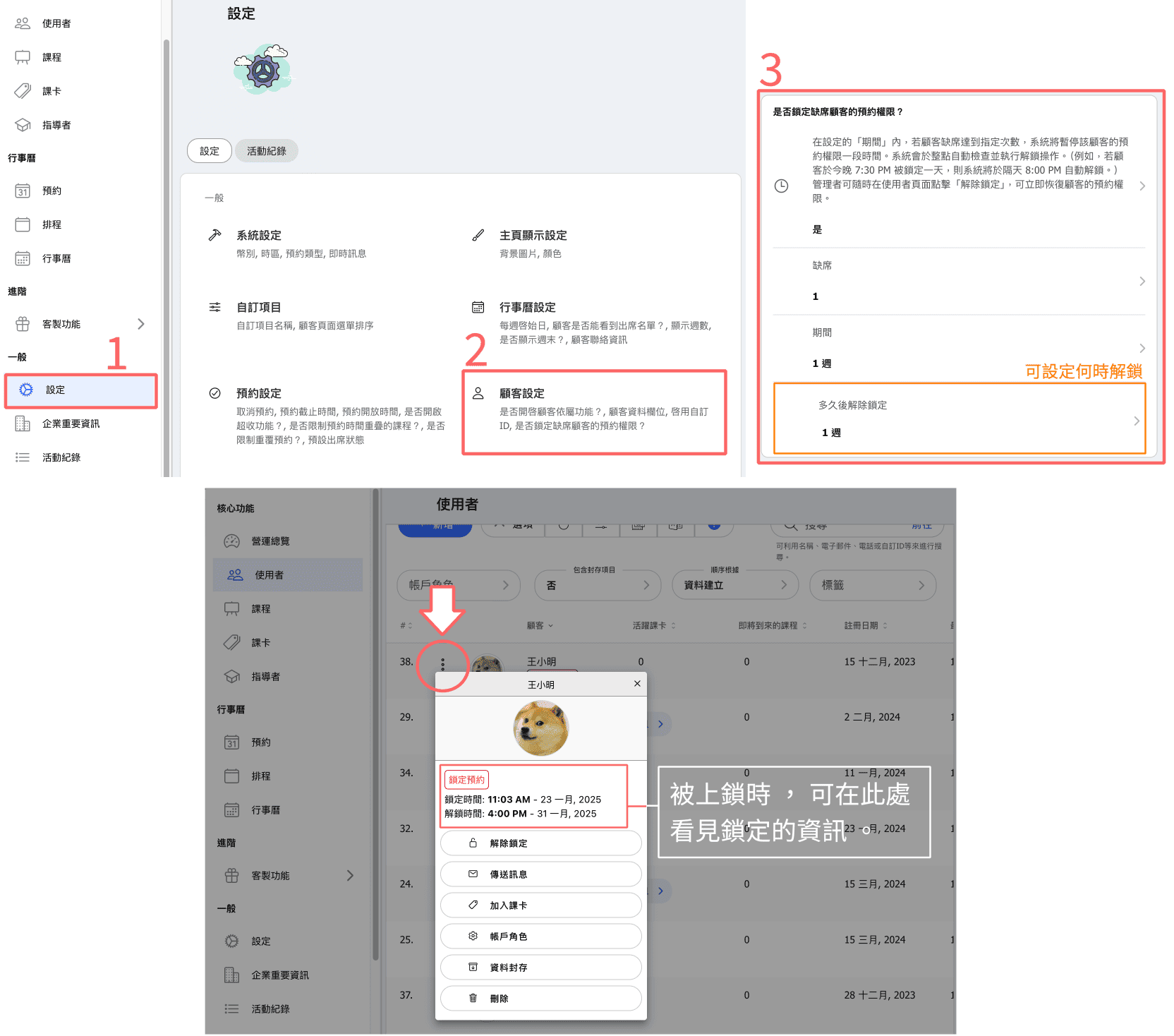
Impact of Locking Customers
- Locked customers cannot book new classes.
- When attempting to book, they will see a message: "Due to multiple absences or cancellations, your booking privileges have been temporarily restricted."
- The business can manually unlock customers if needed.
Manually Unlock