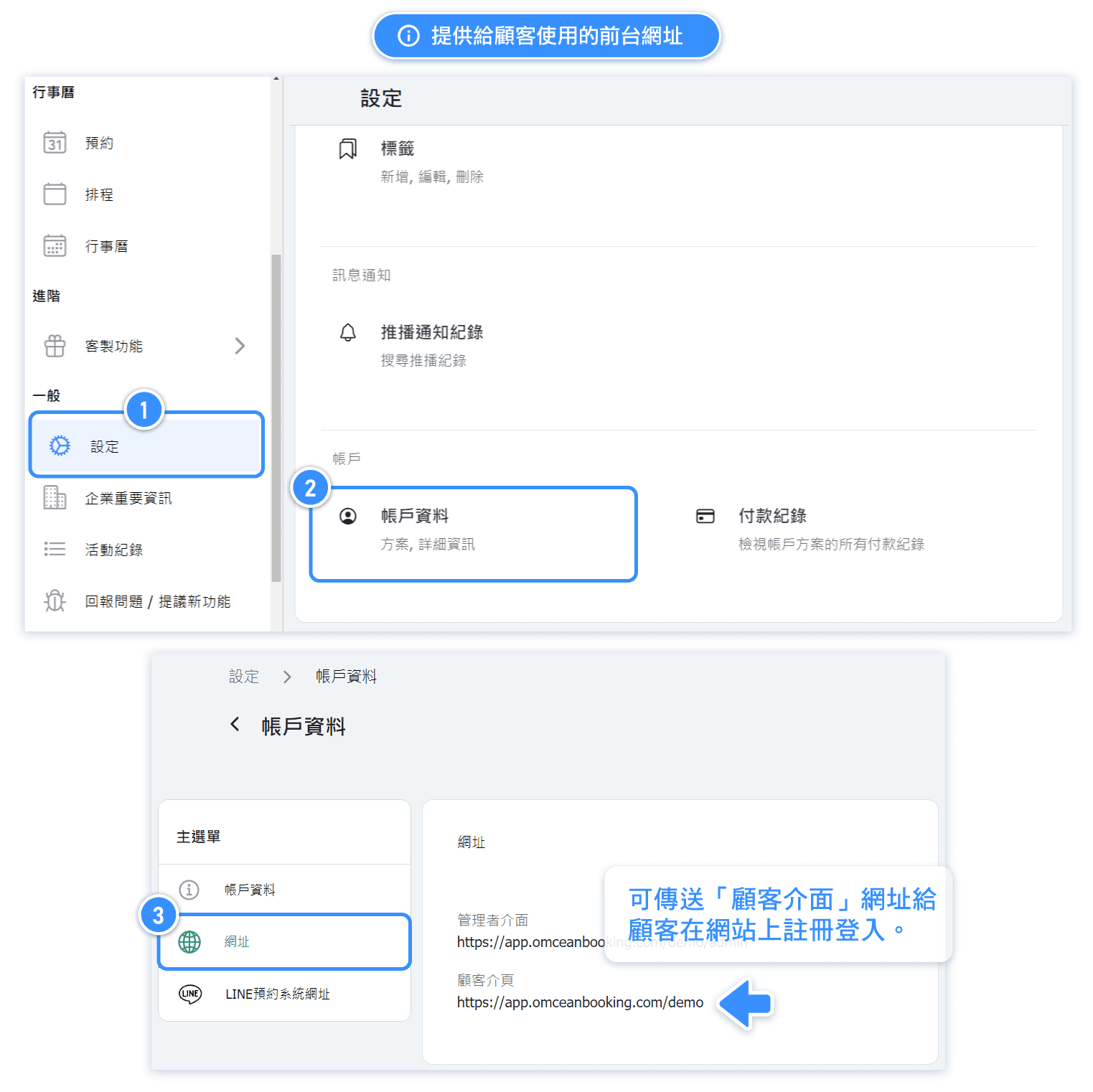
Where the Customer Booking Webpage URL is.
You can provide customers with the web version URL of the booking system, however we recommend customers to download the "Omceanbooking" app from the App Store or Play Store.
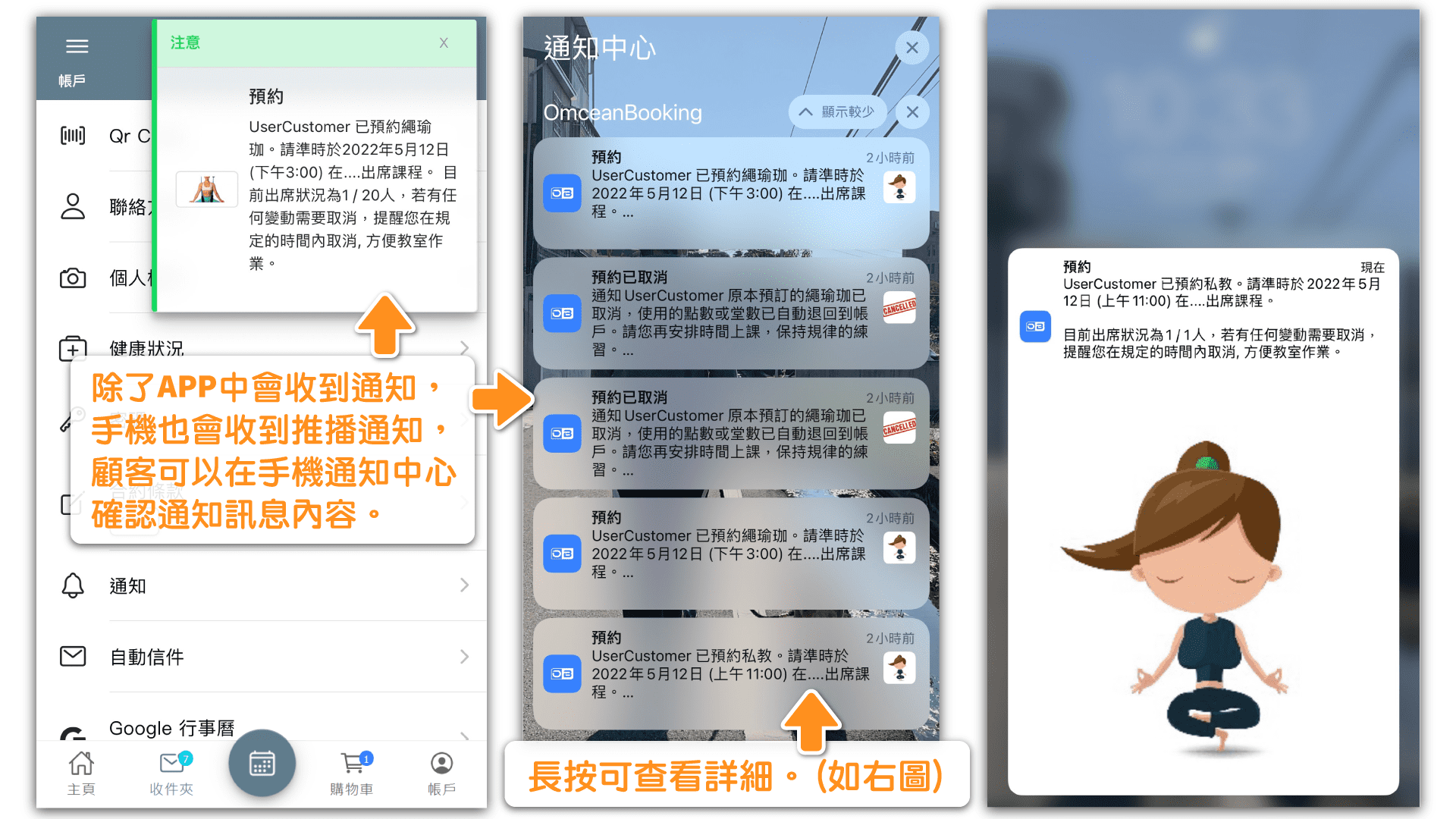
Benefits of using the app: Once logged in to the app, customers can receive notifications of any changes made on their reservation. For example, if there is a cancellation made by the instructor for a class, the customers who has booked this class will receive a notification informing them of the class cancellation.
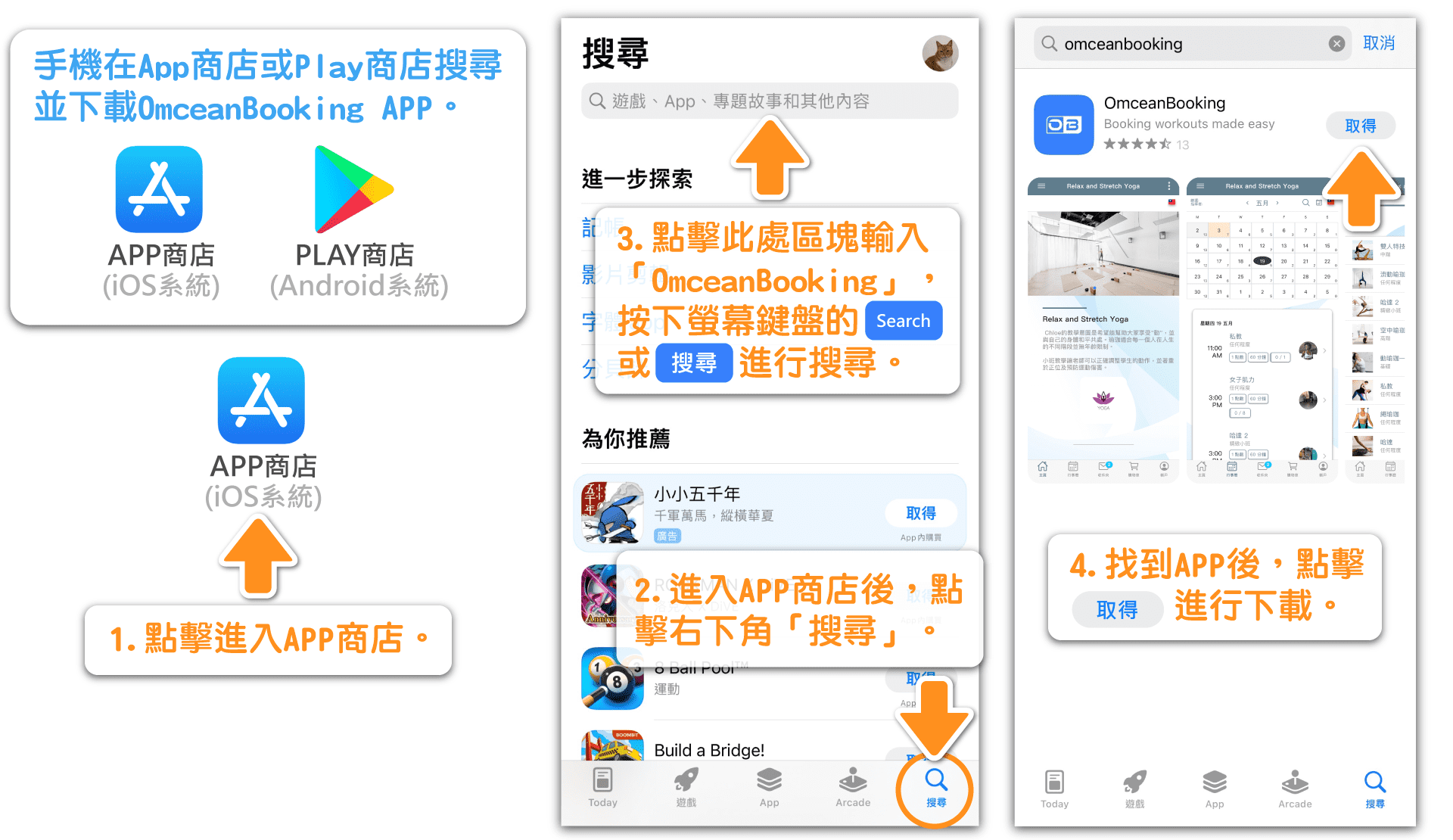
How to Download Omceanbooking APP (Apple Device)
📱 For customers using iOS devices, please download "OmceanBooking" from the App Store.
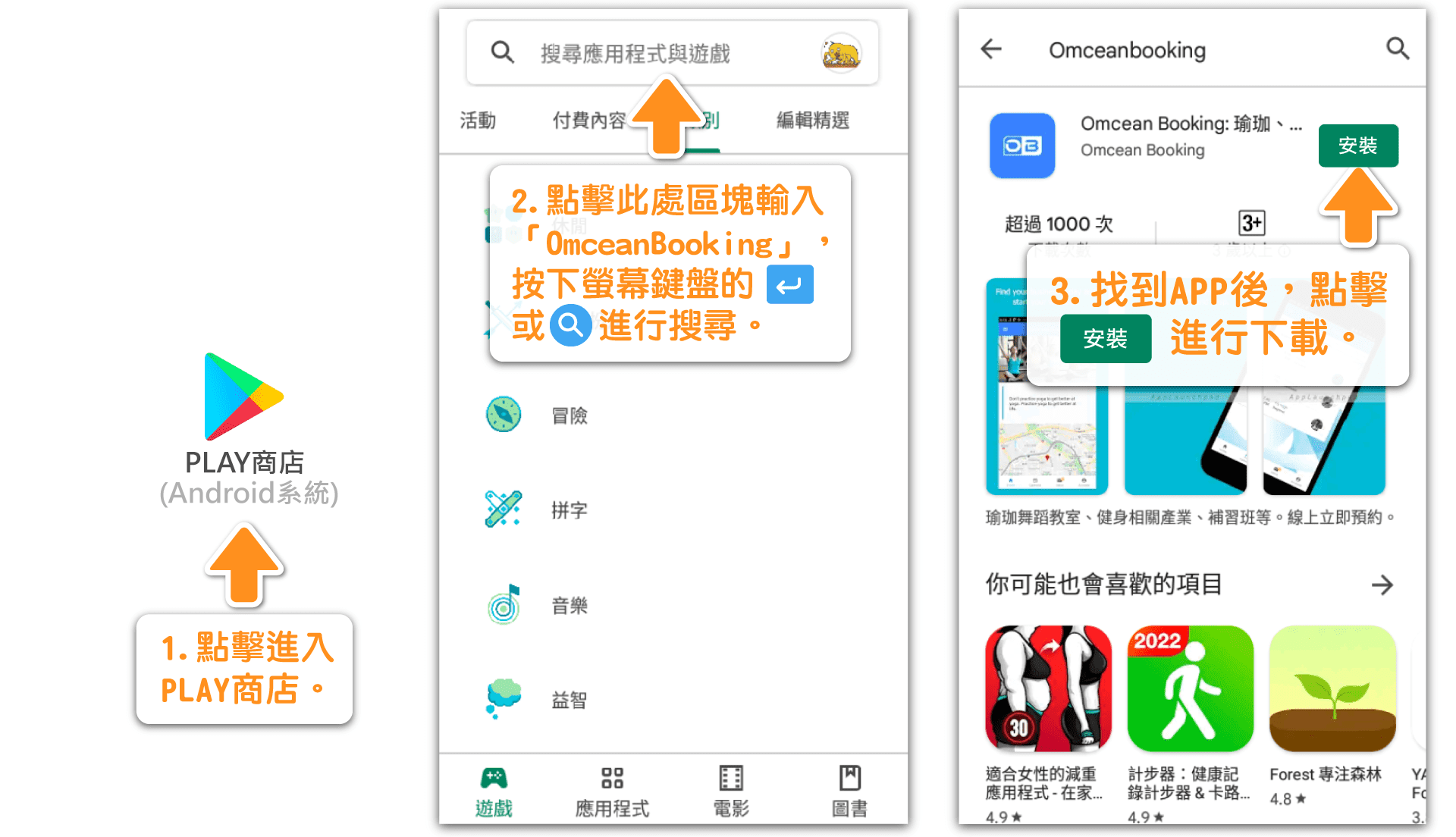
How to Download Omceanbooking APP (Android Device)
📱 For customers using Android devices, please download "OmceanBooking" from the Play Store.
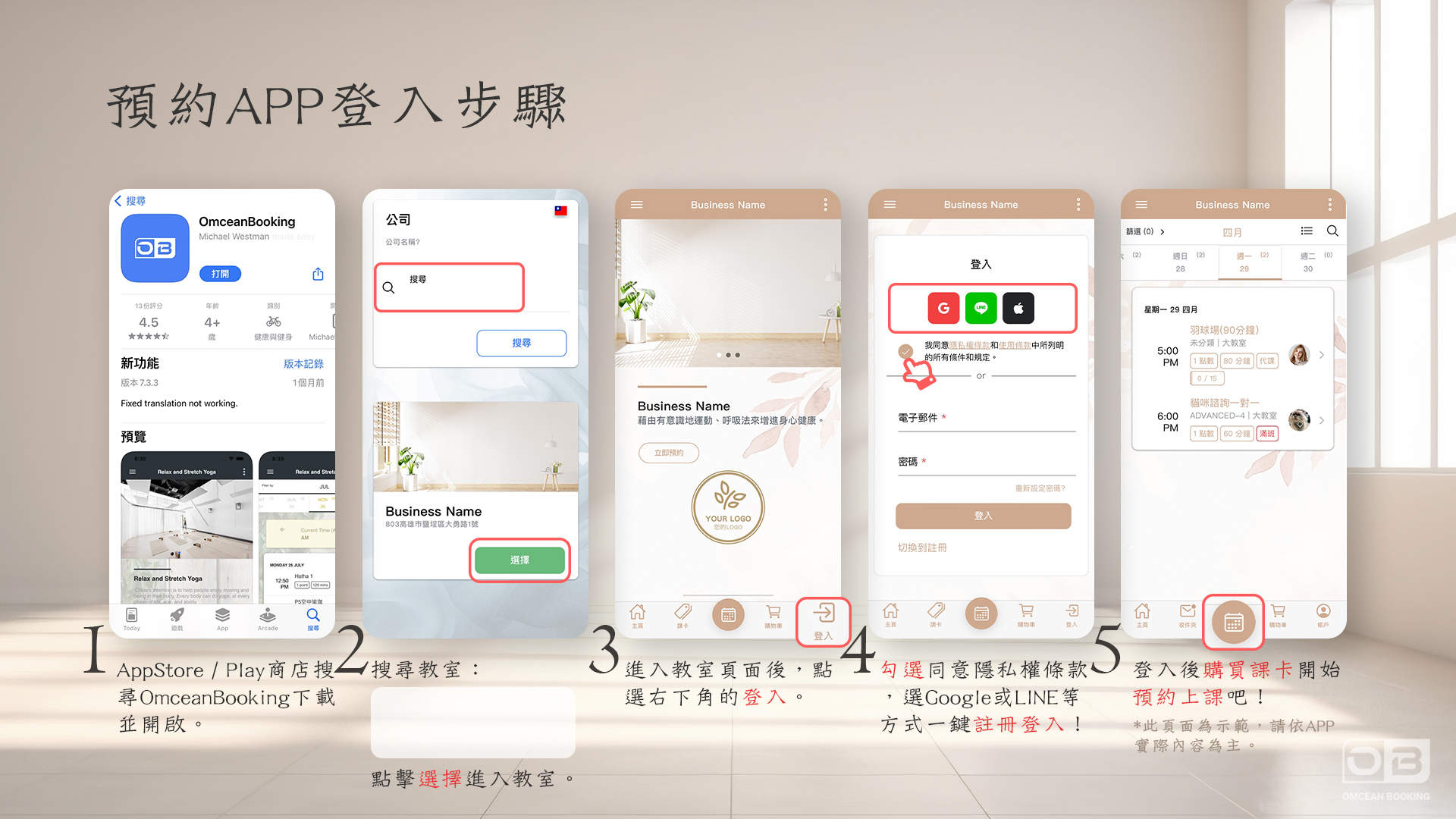
How Customers Register and Log In
Upon entering the system, you will first see the page for searching businesses. After entering the business name and accessing the business page, customers can register by "Email + Password" or "Third-party account" (such as Google, Facebook, or Line) for quick registration and login, where personal photos and basic information from the third-party platform will be synchronized into the system's user database.
The system identifies the source of user accounts based on the "email address" used during registration, so customers must remember the registration method and the email address used.
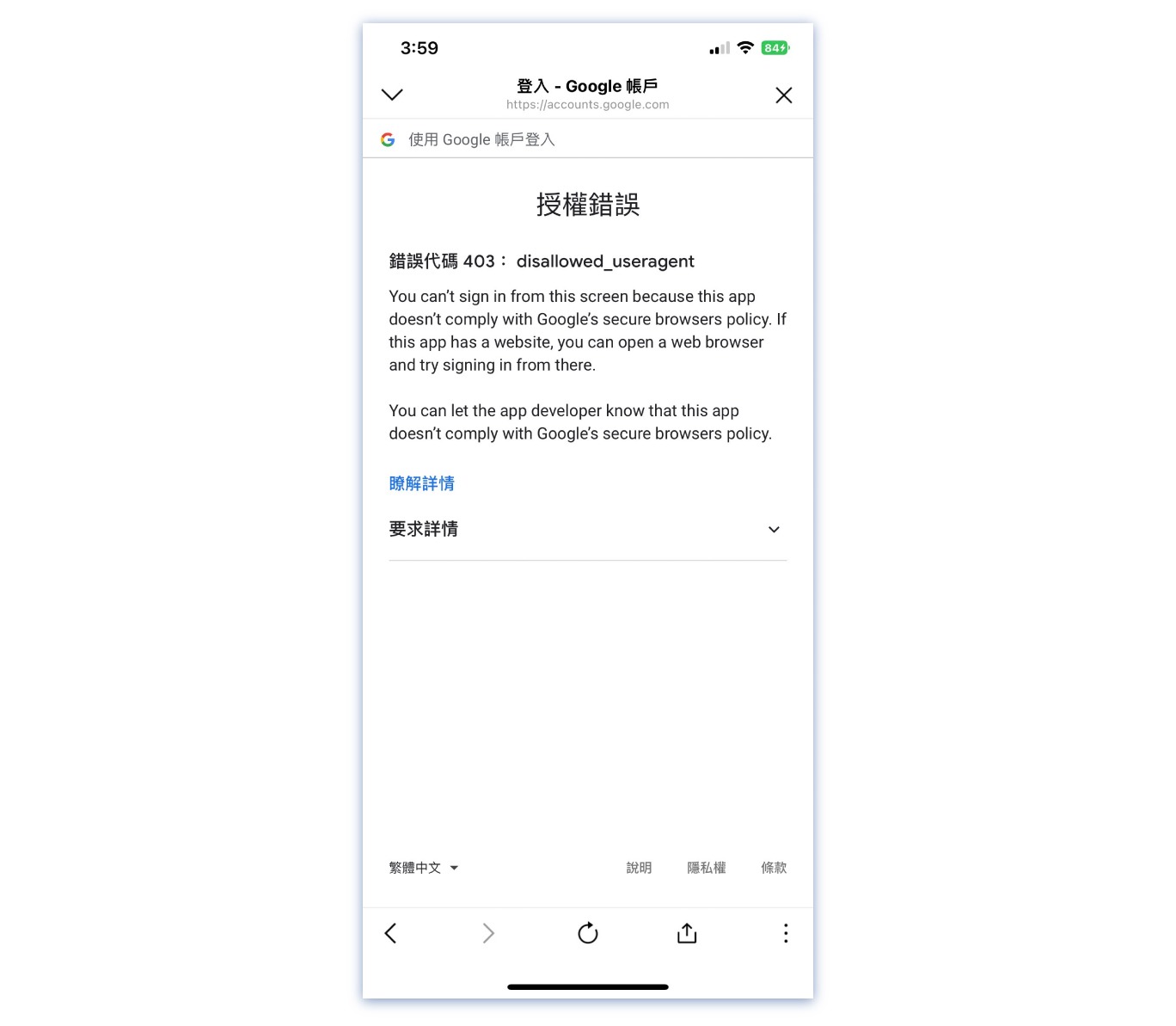
It is recommended to use Google Chrome or Safari browsers for the web version, as using other browsers may result in compatibility issues or third-party platform authorization errors.
Registration and login are required before making an appointment.
———————
Example of authorization error message sent by Google: If customers register or log in using a non-recommended browser, such as the LINE built-in browser, login errors may occur.
———————What should I do if I can't recognize customers after they register?
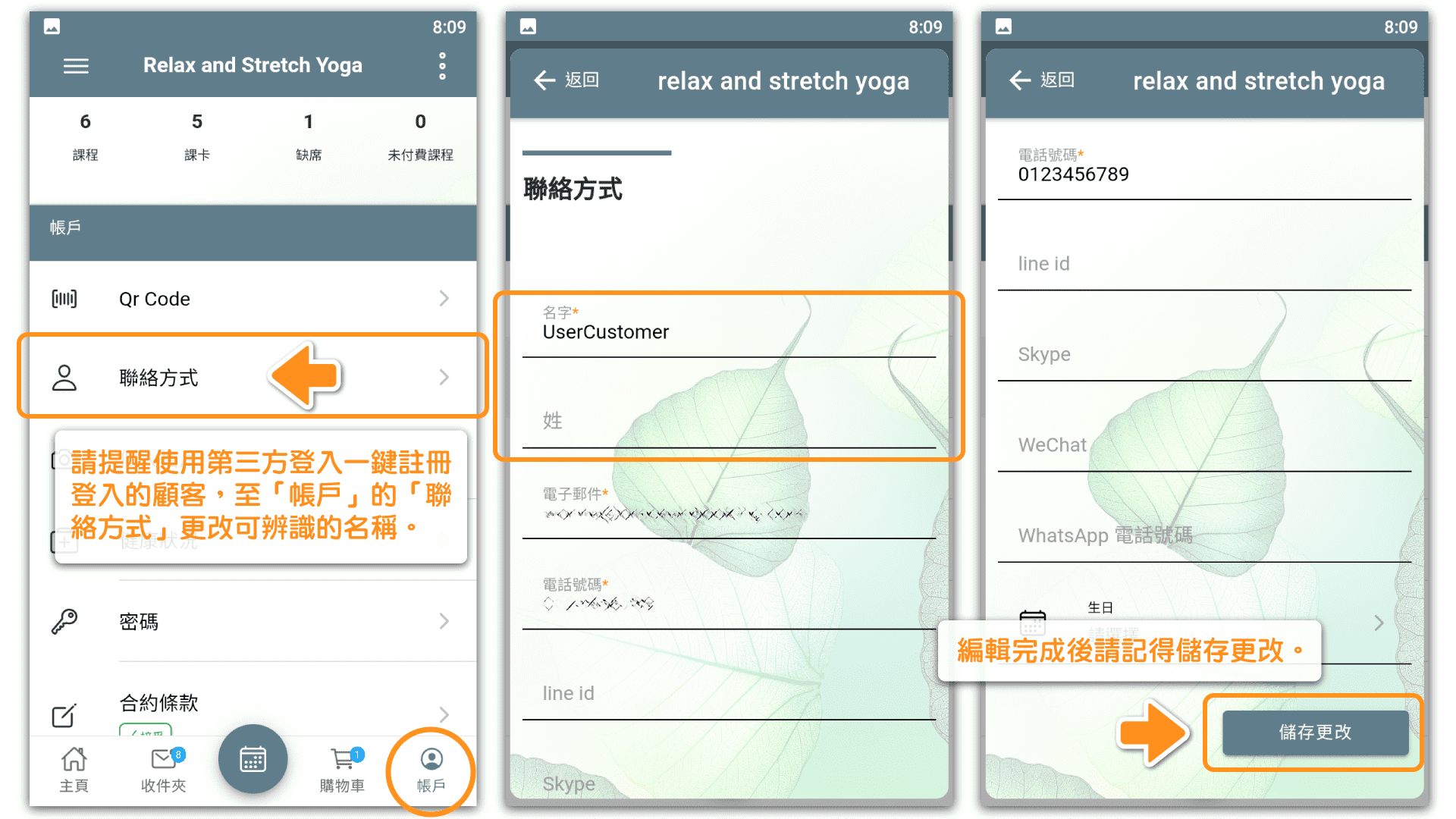
Since accounts registered using third-party login automatically carry the username from that third-party account, it is recommended to remind customers who use third-party login to go to "Account" and "Customer Contact Information" to change their names, or have the administrator change the customer name from the backend, for easier identification by the business.
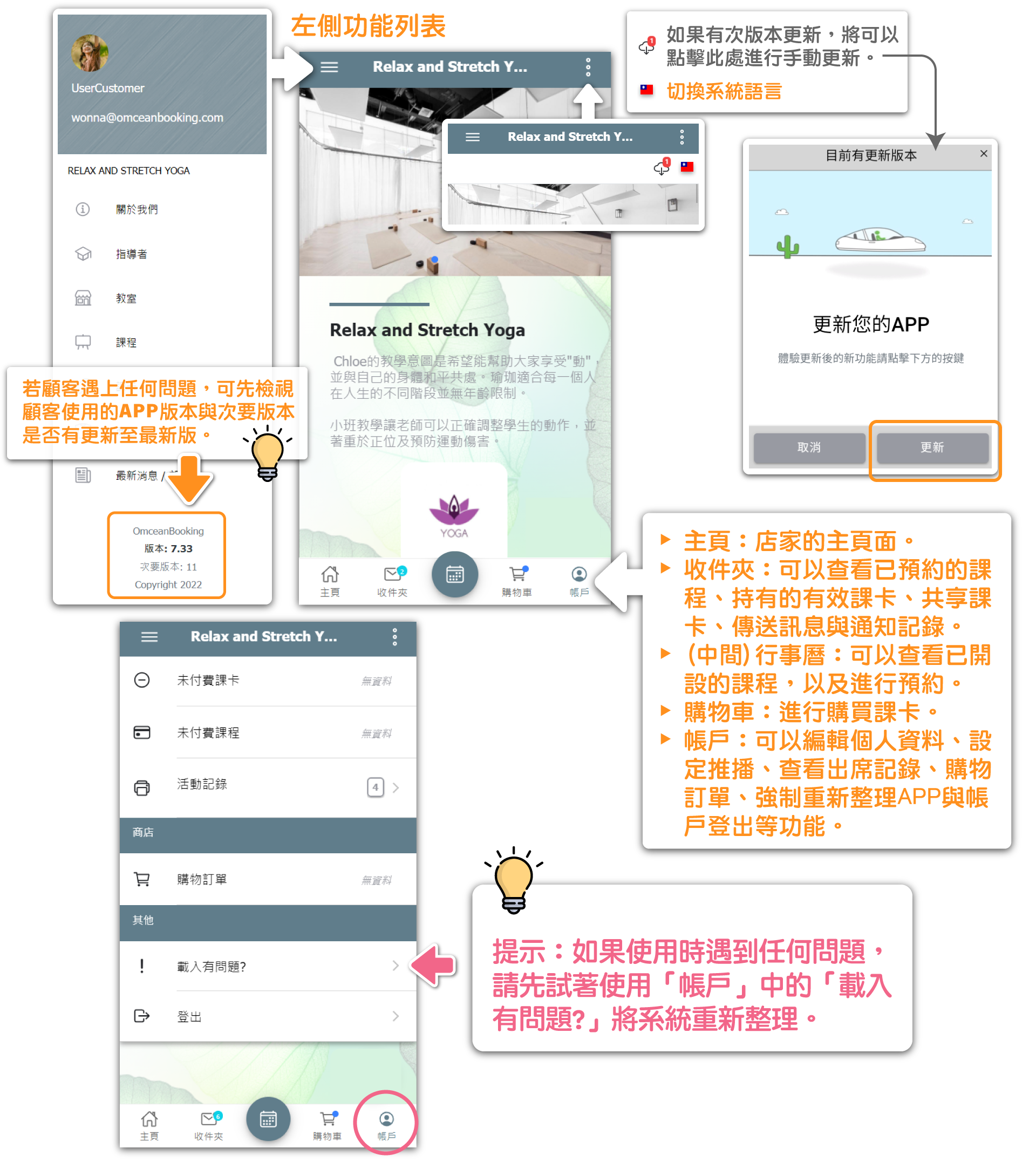
Customer Page Interface and Side Menu
How To Purchase a Pass as Customer

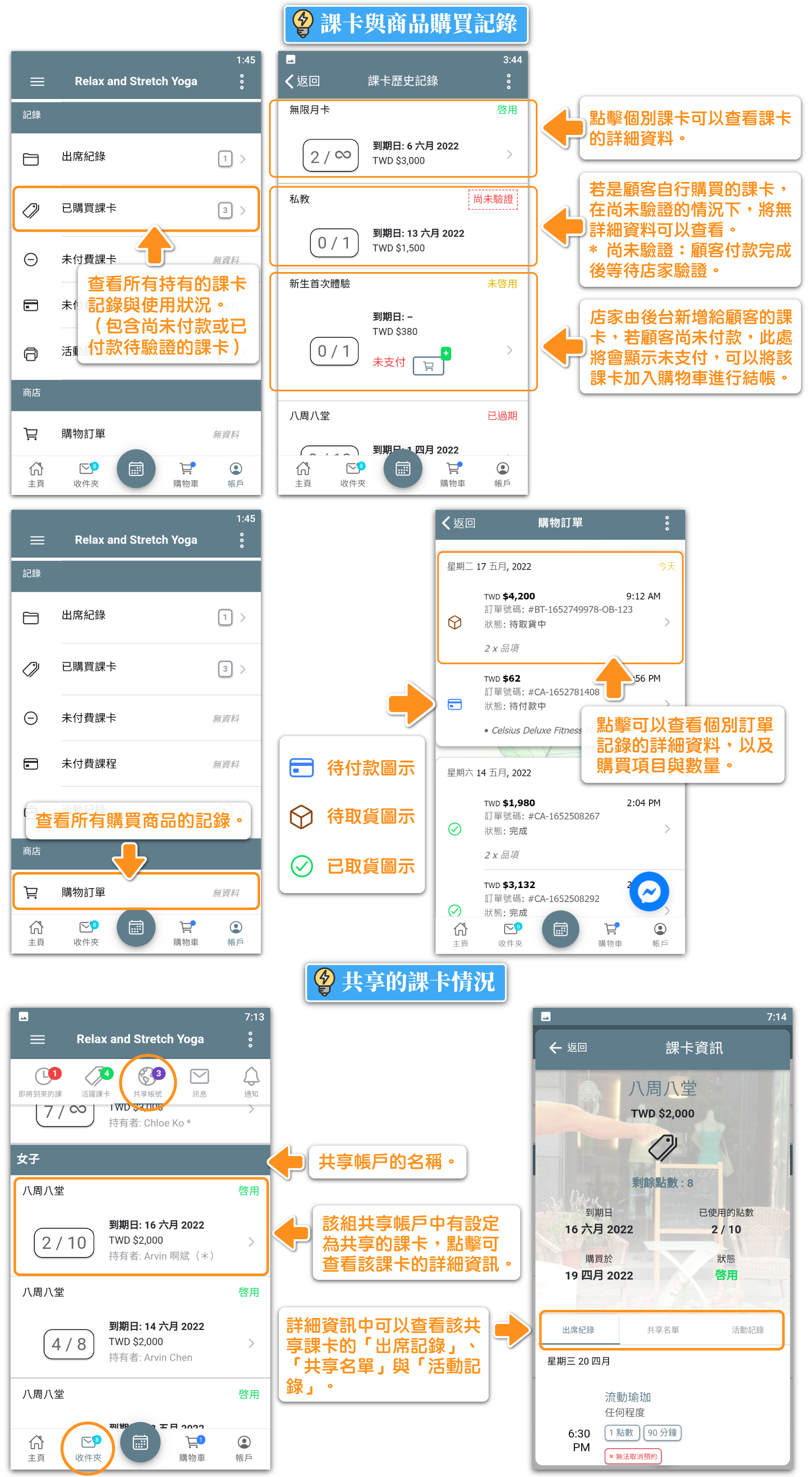
How To View a Purchased Passes as Customer
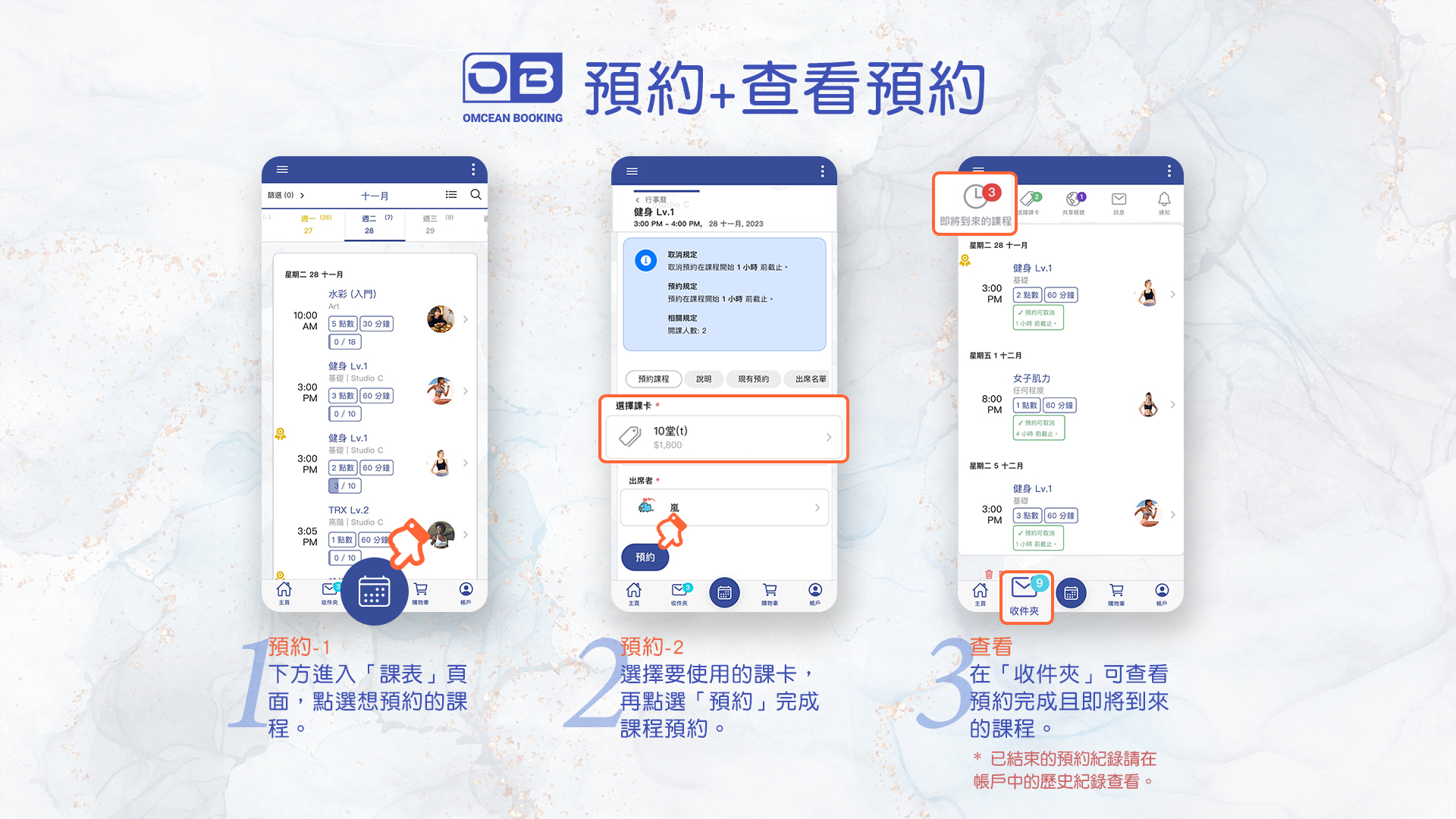
How To Make a Reservation as a Customer (Schedule Module)
After placing an order to purchase a pass, customers simply need to wait for the studio admin to verifyt payment, then they can obtain a valid pass, which can then be used to book classes.
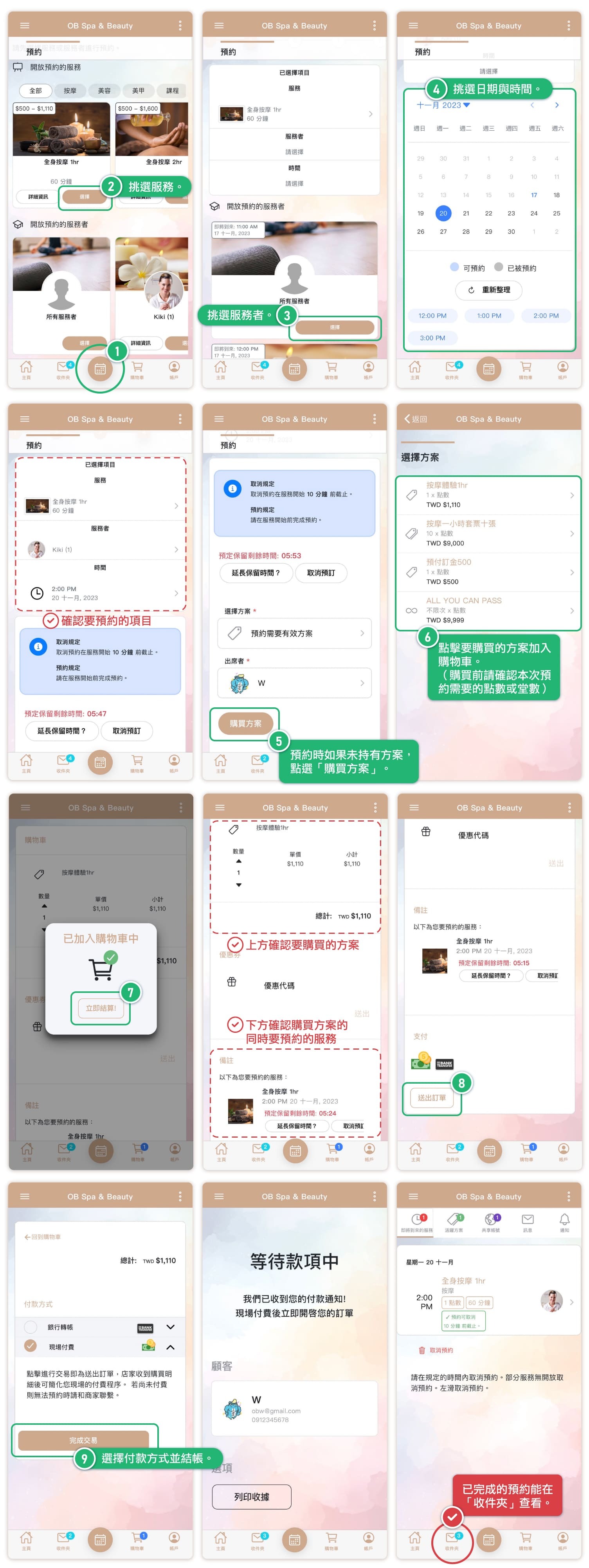
How To Make a Reservation as a Customer (Appointment Module)
Custom names used in screenshots:
- 課卡 Pass = 方案 Plan
- 教室 Classroom = 包廂 Room
- 課程 Class = 服務 Service
- 指導者 Instructor = 服務者 Service Provider
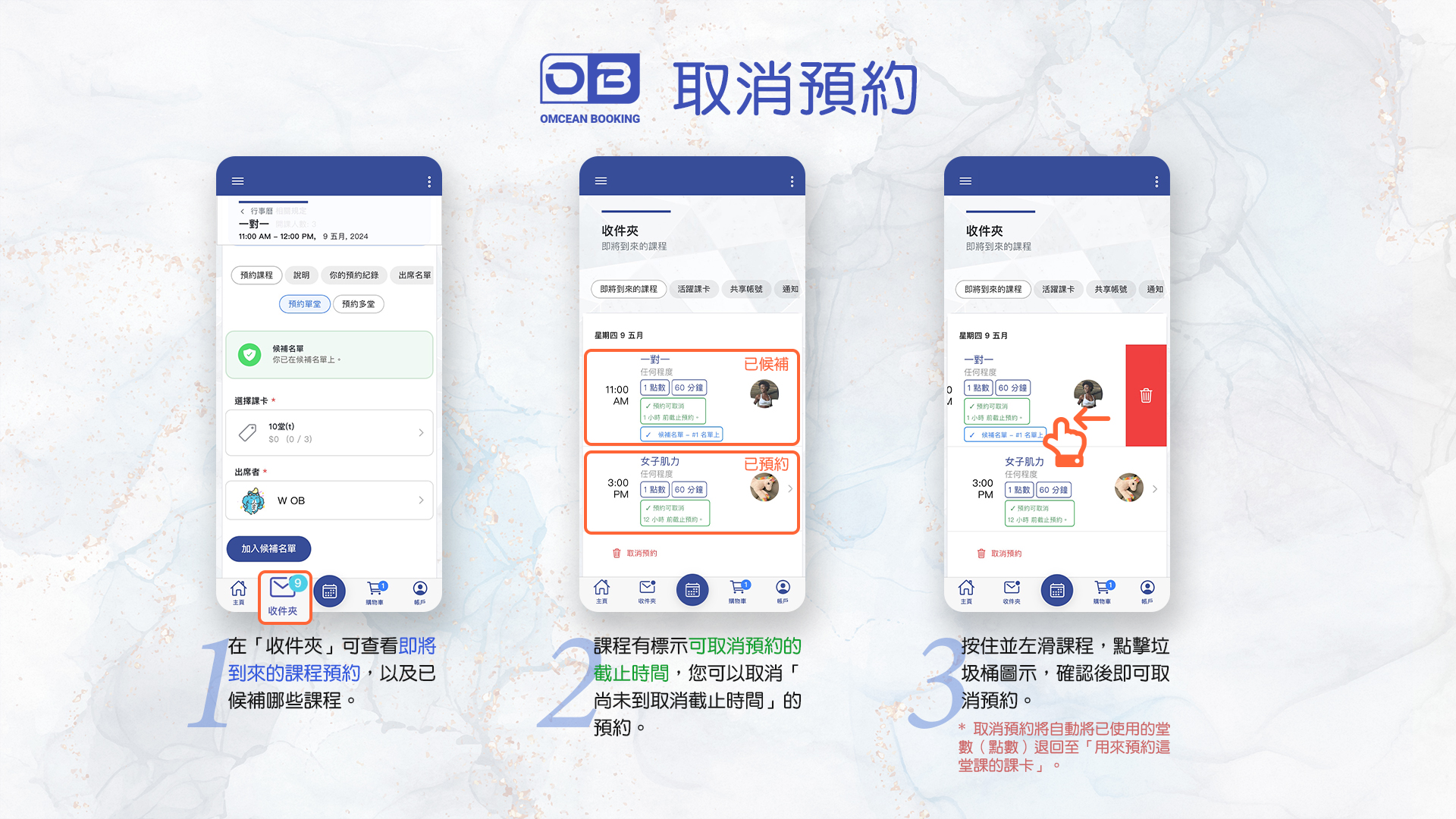
How To Cancel a Reservation as a Customer
How to View All Reservation Records and Attendance Records
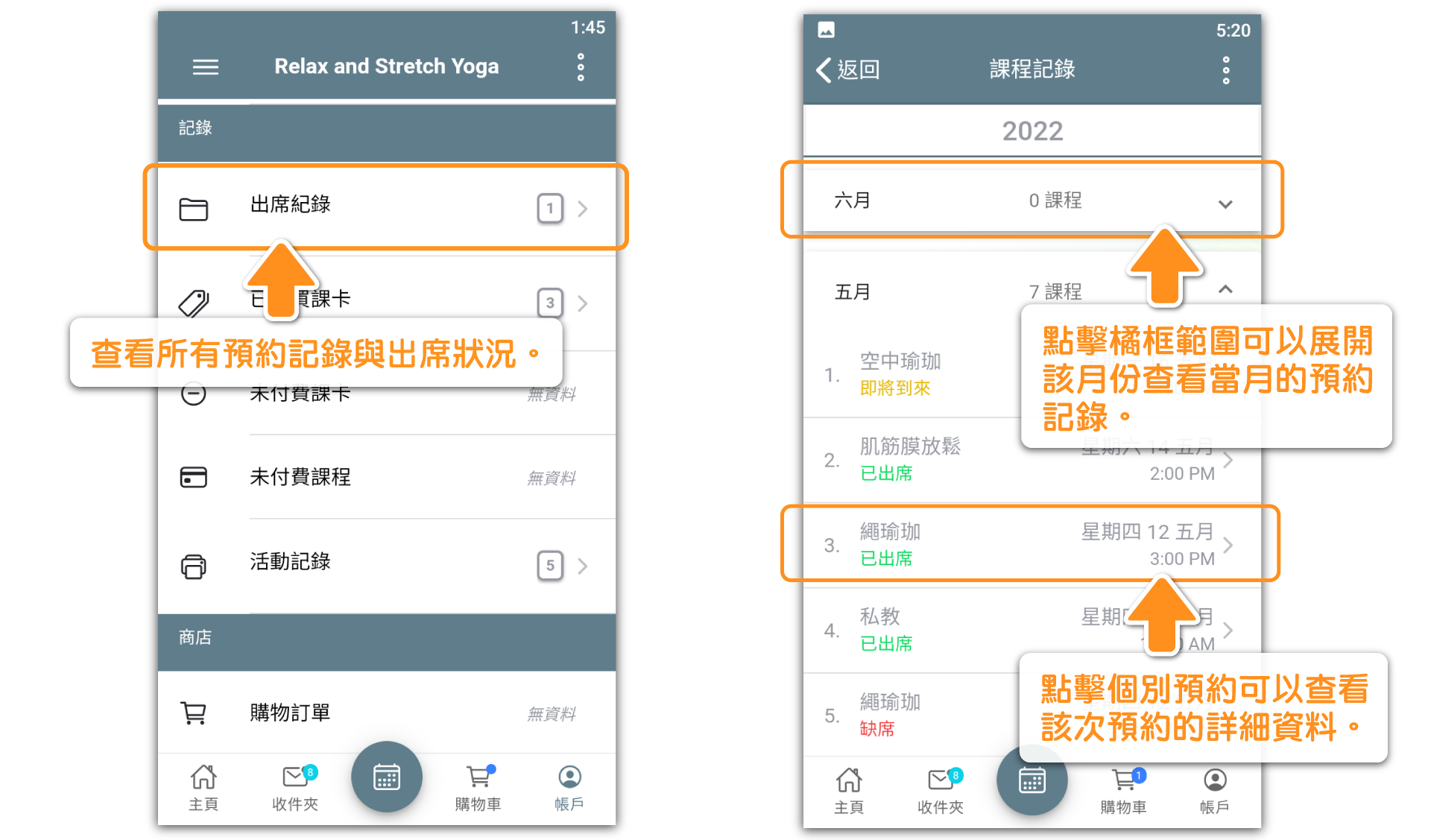
How Customers Can Contact Studio Instructors or Admins
If customers need to contact an instructor or administrator, they can do so through two methods:
———————
Method 1: Contacting the studio instructor or administrator through the inbox's messaging feature (if the studio has enabled this feature)

———————
🔔 How admin can enable messaging feature


———————
Method 2: Contacting the instructor or administrator via the form at the bottom of the homepage
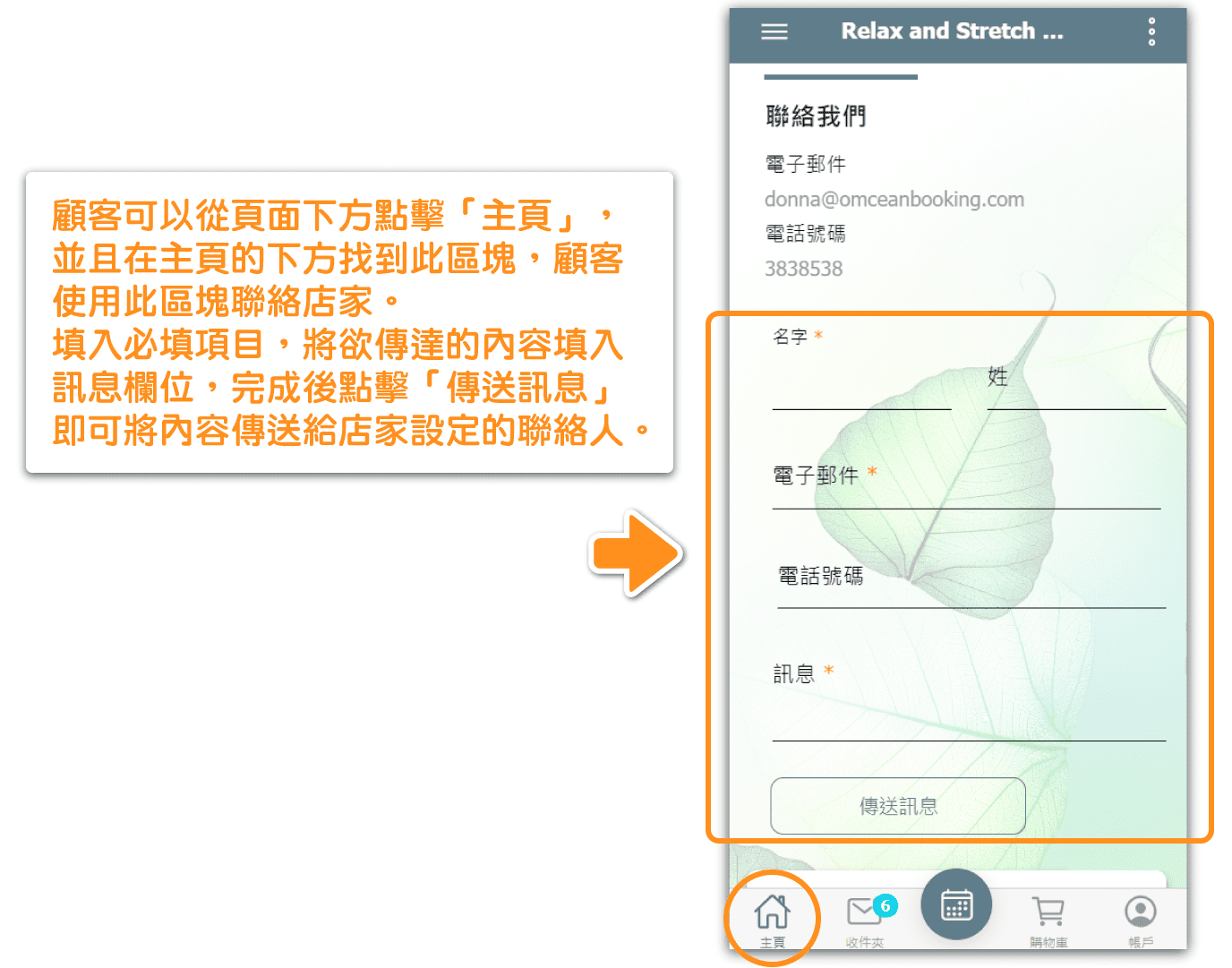
———————
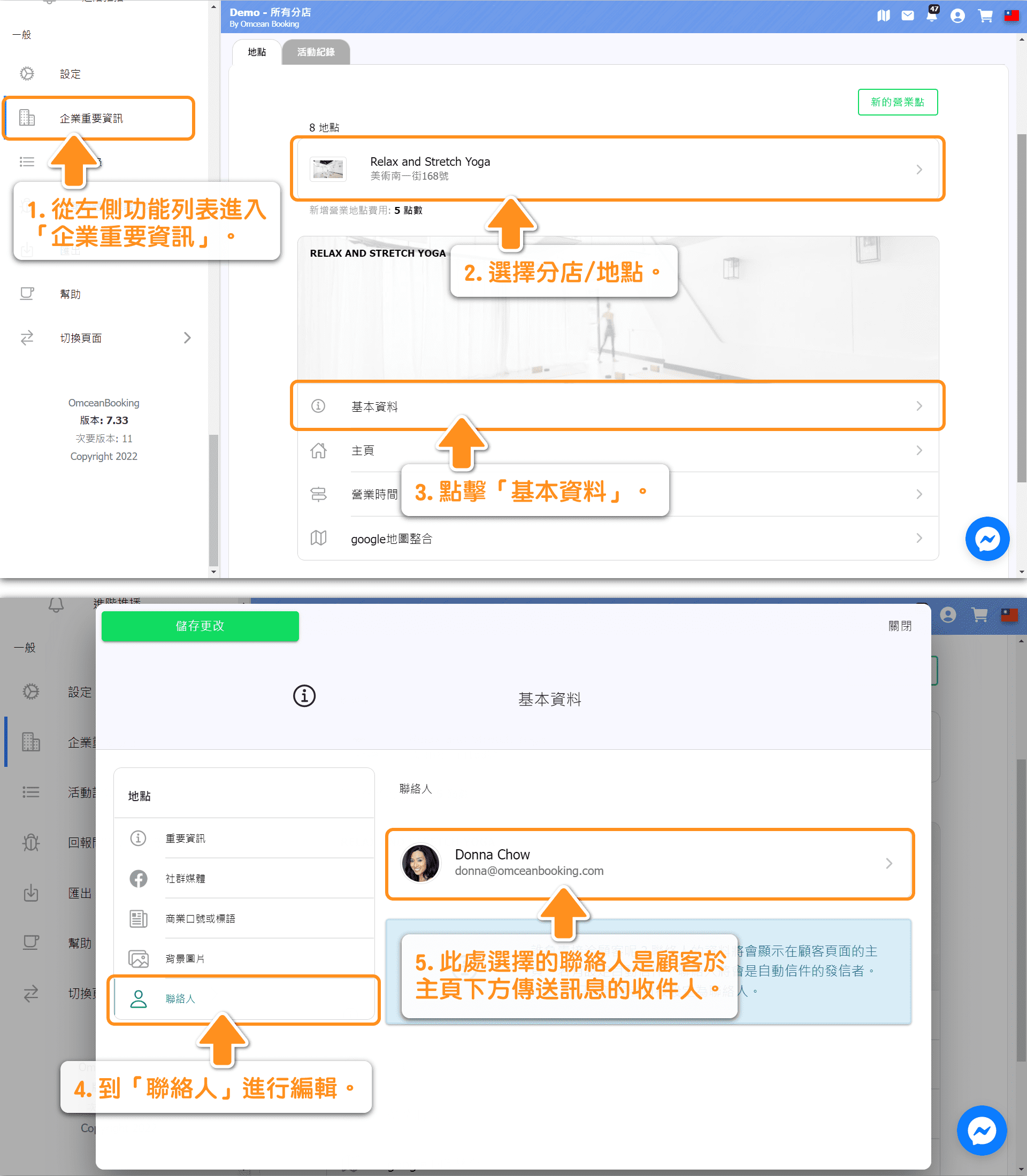
📧 How to set up the store's contact person (recipient) 📧
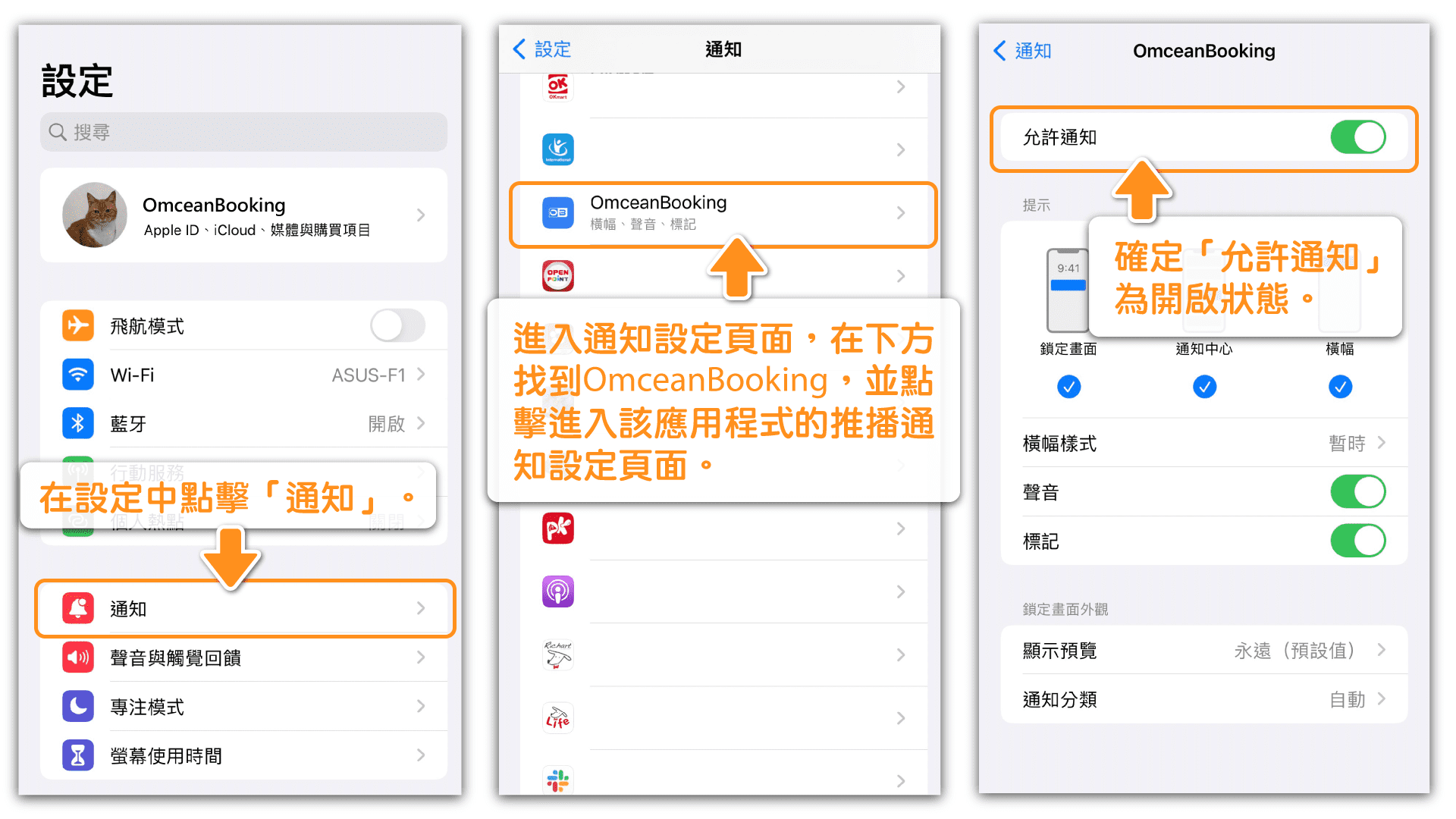
Push Notification Settings

➜ How to Enable Notifications on Your Device (Apple Device)
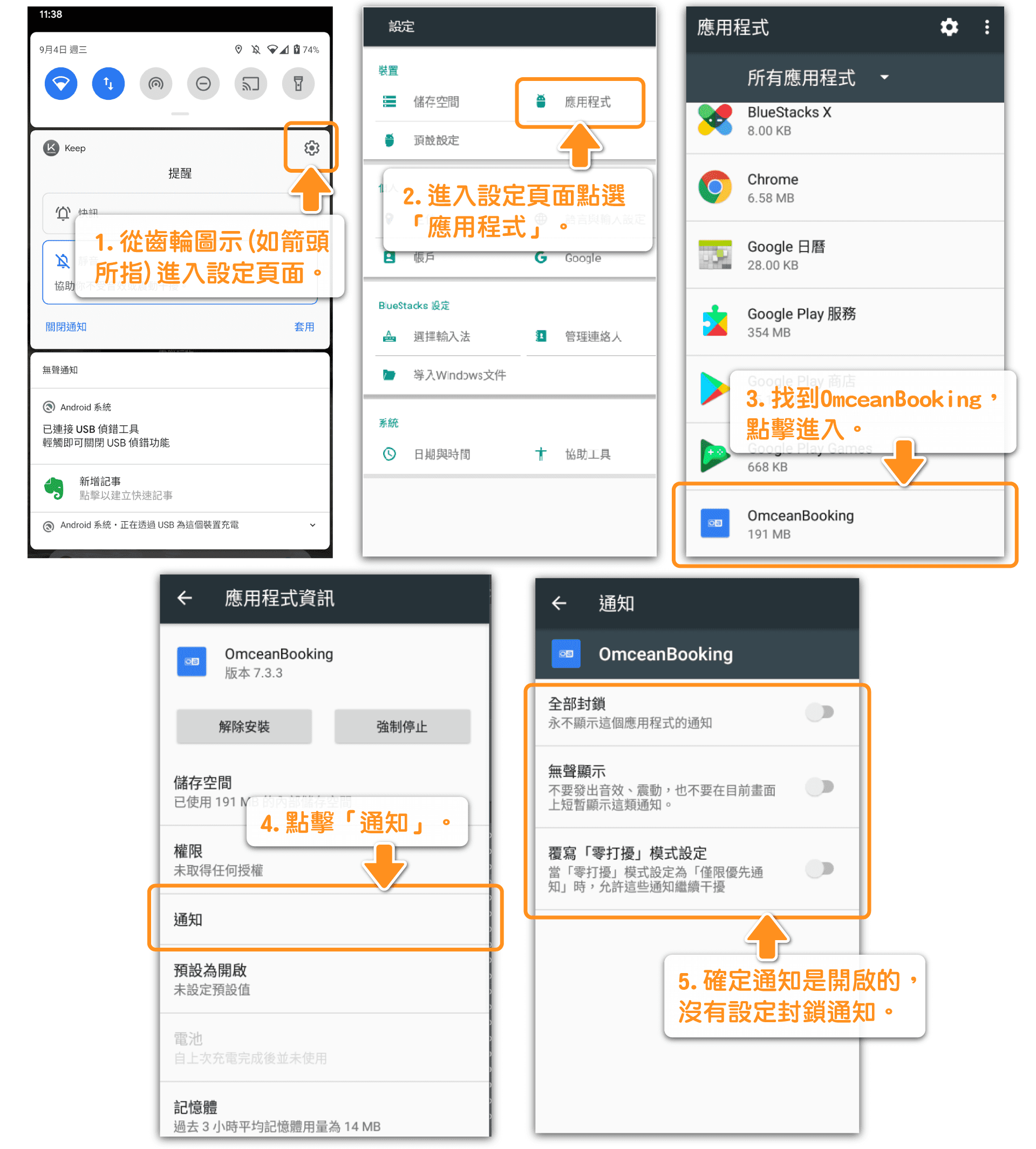
➜ How to Enable Notifications on Your Device (Android Device)