
What is the Multiple Reservations feature?
Multiple Reservations lets customers book several sessions of the same class in advance with a single action. This is especially useful for:
- Regular attendees: A student who attends Yoga every Wednesday at 7pm can book the next 4-8 weeks at once
- Course enrollments: Students enrolling in a multi-week course can secure all sessions upfront
- Planning ahead: Customers who want to lock in their spots before classes fill up
Requirements:
- The class must be a repeating class or part of a scheduled course
- The feature must be enabled by the business in their settings
- One-off classes do not support multiple reservations
How do customers book multiple classes?
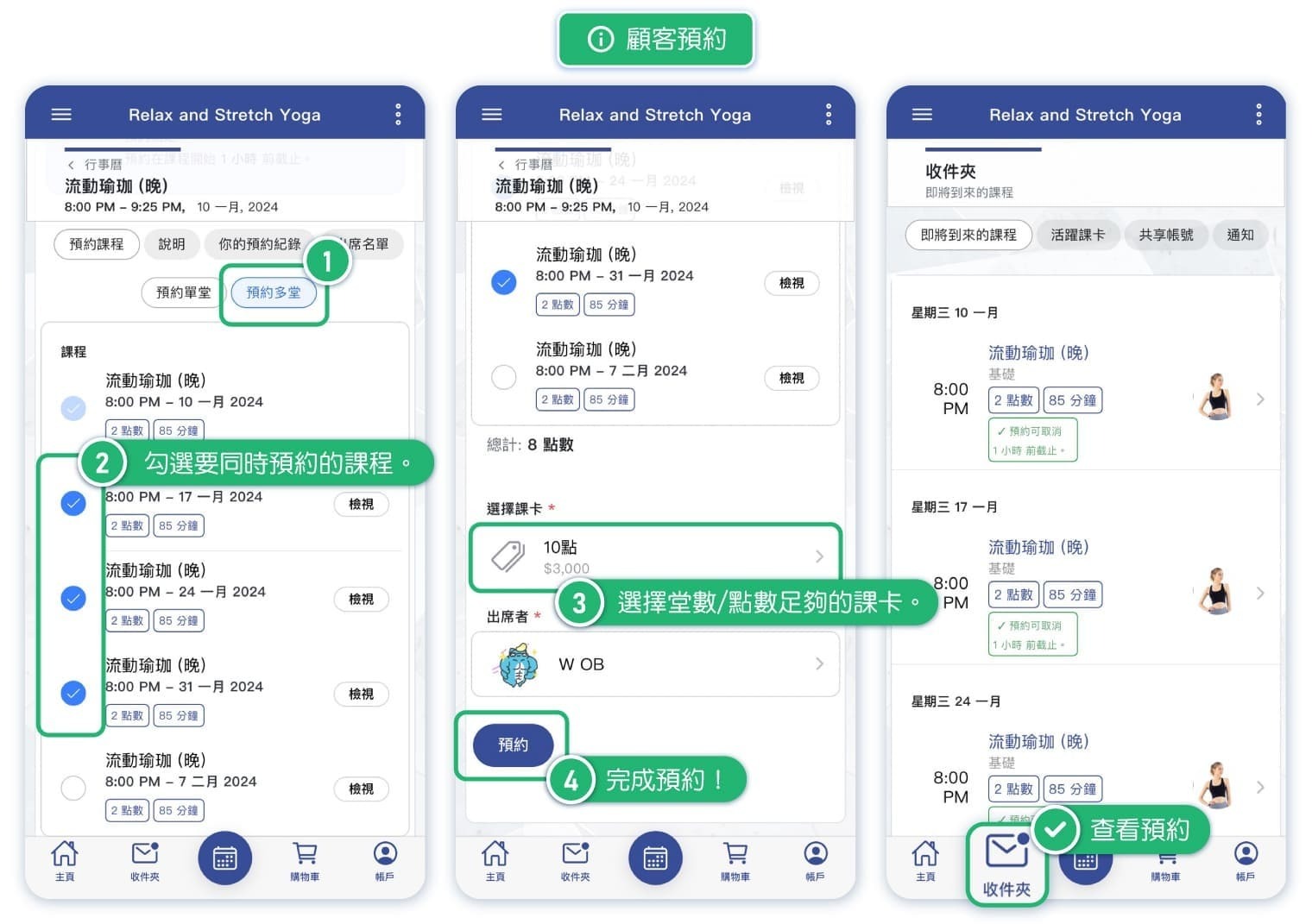
To book multiple sessions of a recurring class:
- Open the class from the calendar on the booking page
- Look for the Multiple Reservations option (appears for repeating classes only)
- You'll see a list of upcoming dates for this same class
- Select the dates you want to attend by checking the boxes
- Review your selections and confirm the booking
What you'll see:
- List of upcoming class dates with availability status
- Checkboxes to select which sessions to book
- Pass/credit information if applicable
- Total number of sessions being booked
Tip: Book early! Popular classes may fill up quickly, and the Multiple Reservations feature helps you secure your spots in advance.
Why can't I book some dates?
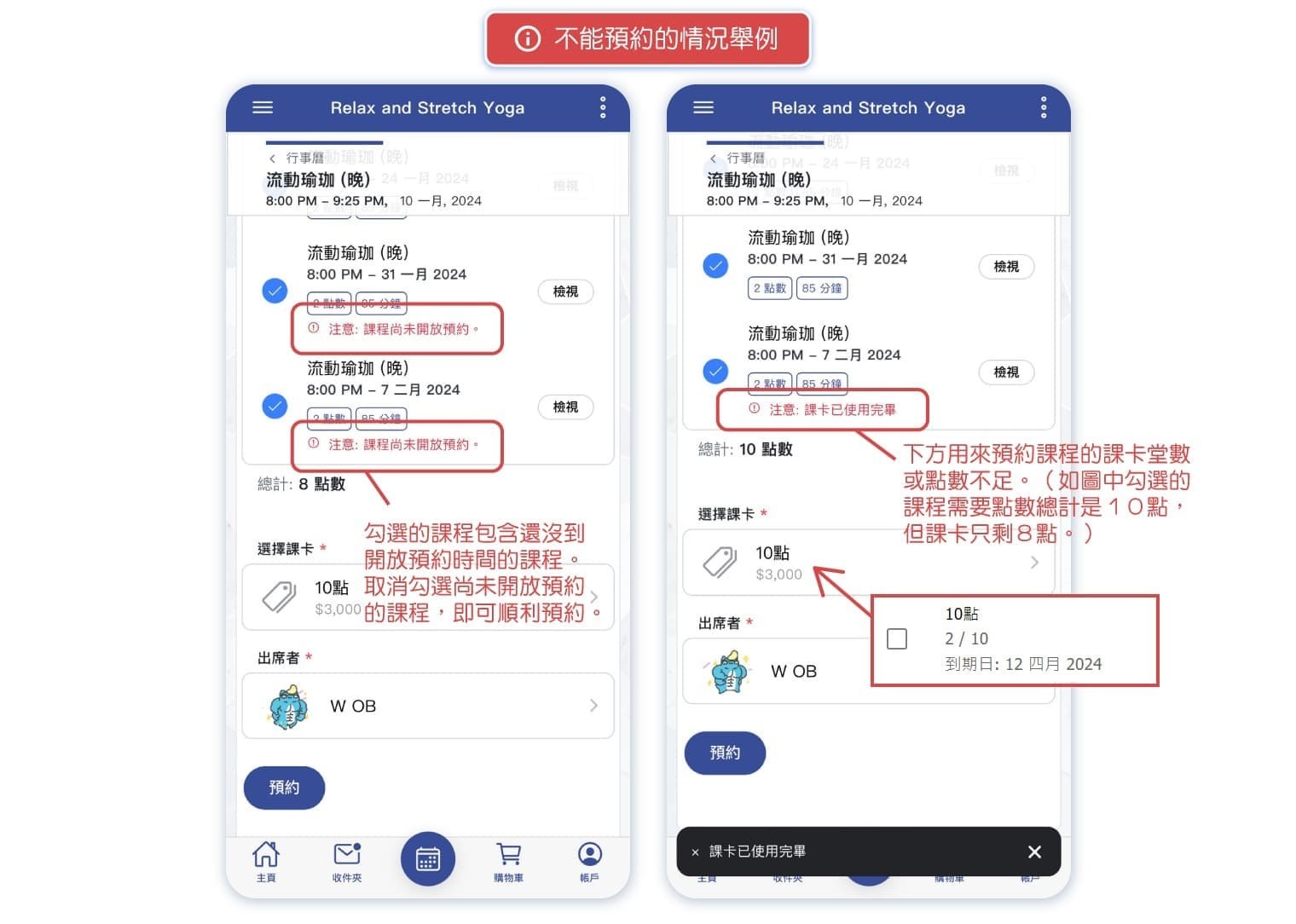
When using Multiple Reservations, some dates may be unavailable. Here's why:
Common reasons a date can't be booked:
- Class is full: The capacity has been reached for that session
- Already booked: You've already reserved that date
- Class cancelled: The instructor cancelled that specific session
- Too far in advance: The booking window hasn't opened yet
- Pass expired: Your pass won't be valid on that date
- Insufficient credits: You don't have enough credits/passes for all selected dates
Unavailable dates will be shown but greyed out or marked as unavailable, so you can still book the dates that work for you.
How do I enable Multiple Reservations for my business?
Business owners and administrators can enable this feature in settings:
- Go to Settings → Reservation in the admin menu
- Find the Multiple Reservations setting
- Toggle it ON to allow customers to book multiple sessions
- Click Save
Important notes:
- This feature only works with repeating classes and scheduled courses
- One-off classes will not show the Multiple Reservations option regardless of this setting
- You can control how far in advance customers can book through other reservation settings
Tip: Enabling Multiple Reservations can improve customer retention by making it easy for regulars to commit to multiple weeks.
How does this work with passes and credits?
When booking multiple classes, the system handles passes and credits automatically:
For credit-based passes:
- Credits are deducted for each class you book
- You can only select as many dates as you have credits available
- The system shows remaining credits as you select dates
For unlimited passes:
- You can book any available dates within your pass validity period
- Dates outside your pass expiration will be unavailable
For pay-per-class:
- You'll be charged for all selected classes
- Total cost is shown before confirmation
Cancellations: If you need to cancel a booking made through Multiple Reservations, each class follows the standard cancellation policy. You may need to cancel each session individually.


