
What is Group Booking?
Group booking allows customers to reserve multiple spots in a single class with one reservation. Instead of making separate bookings for each person, customers can select the total number of attendees and complete the booking in one step.
Perfect for:
- Friends or family joining a yoga or fitness class together
- Parents booking for themselves and their children
- Workshop group registrations
- Corporate teams signing up for group classes
How to Enable Group Booking (Admin)
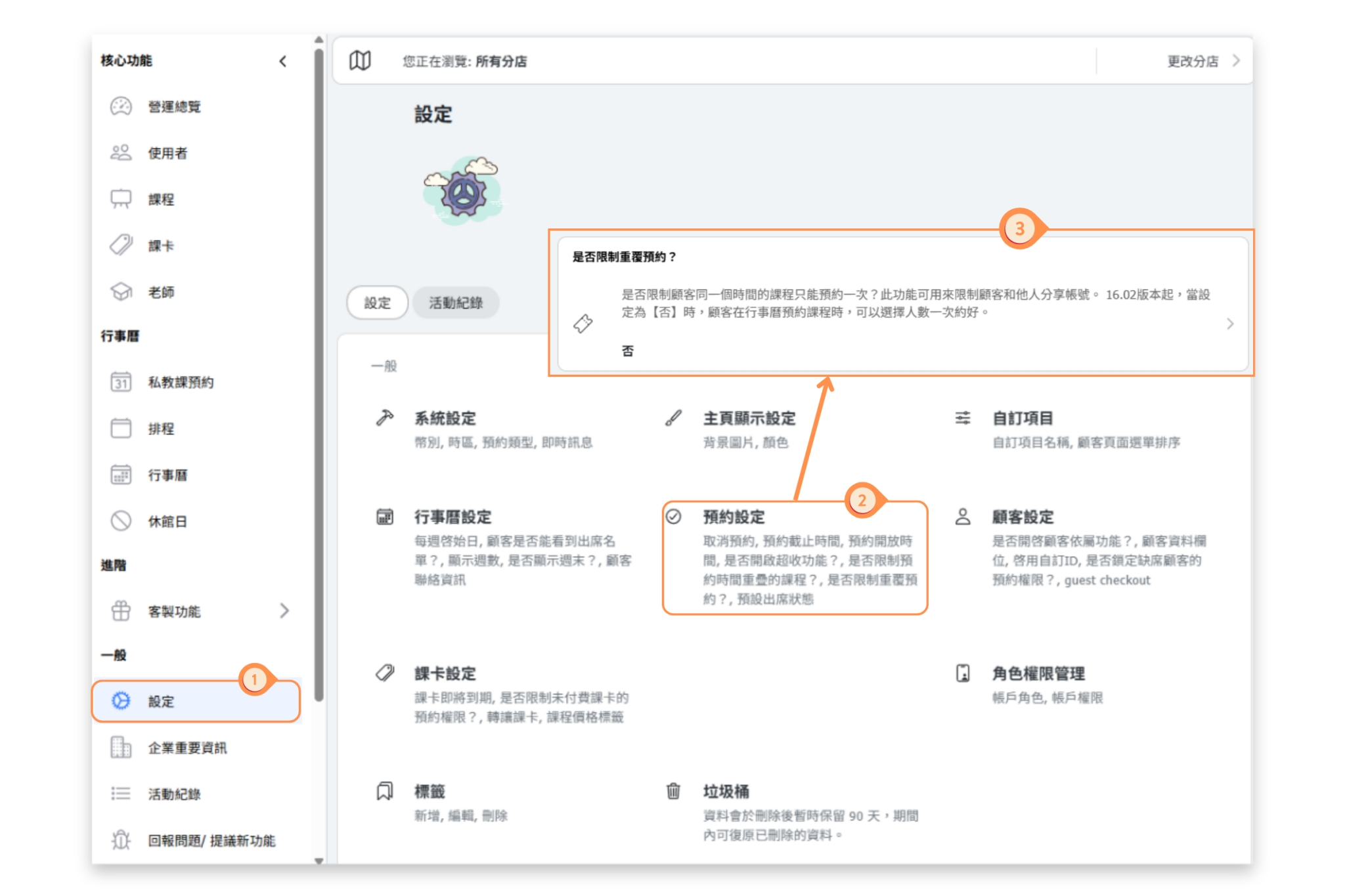
To enable group booking, you need to turn off the "One reservation per class" setting:
- Go to Settings in the admin panel
- Click on Reservation Settings
- Find One Reservation Per Class
- Set it to No
- Click Save
When set to "No", customers can select how many spots they want to book (1, 2, 3, etc.) when making a reservation.
Note: The maximum number of spots a customer can book is limited by the available spots in the class.
How Customers Book Multiple Spots
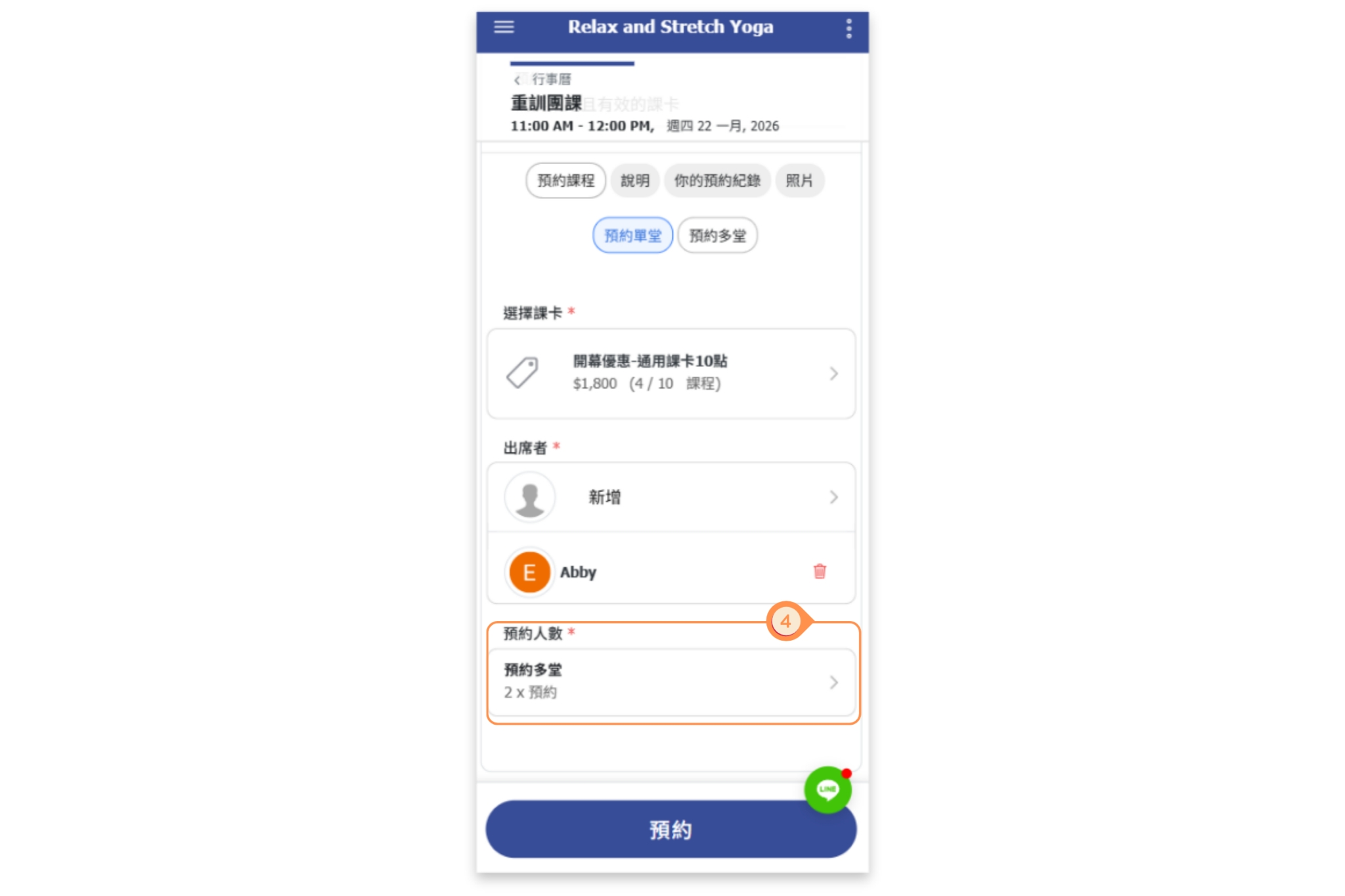
When group booking is enabled, customers will see a number selector when making a reservation:
- Customer opens a class from the calendar
- Clicks Reserve Spot
- Selects the number of spots needed (1, 2, 3, etc.)
- Completes the reservation
All spots are booked under the customer's account and use points from their pass accordingly.
Important Notes
- Pass Points: If the class costs points, the customer's pass will be charged for each spot booked (e.g., 3 spots = 3 points deducted)
- Cancellation: When cancelling a group reservation, all spots are cancelled together
- Attendance: Each spot counts as a separate attendance for reporting purposes
- Account Sharing: If you want to prevent customers from sharing accounts (one person booking for others), keep "One reservation per class" set to "Yes"


