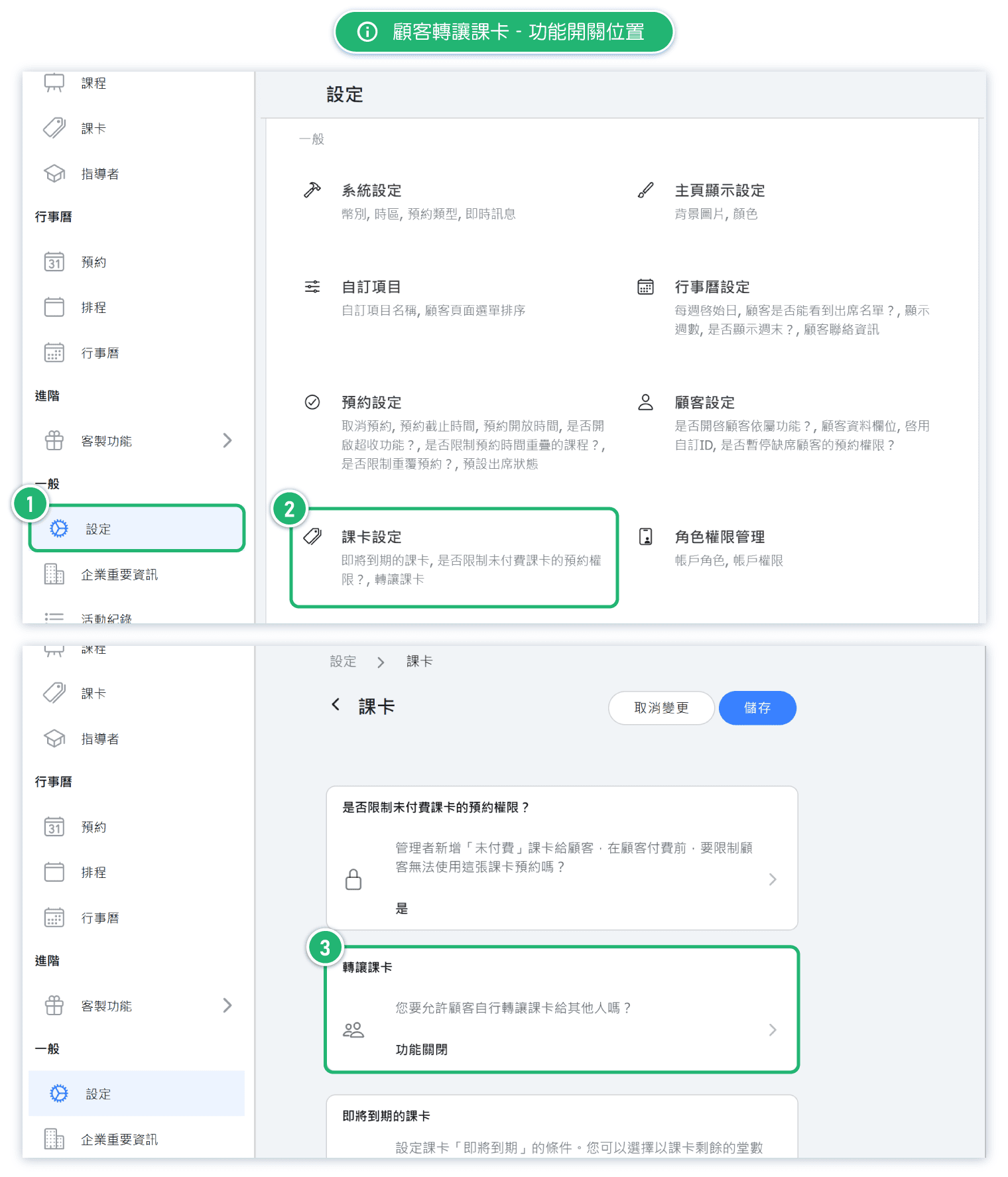
1. How to turn this feature on?
Go to "Settings" → "Pass Settings" where you'll find the "Transfer Pass" setting.
There are three different options:
- OFF
- Transfer via Code: Customers generate a "Transfer Code" which they can share with others. Other customers use this code to complete the transfer and get the pass.
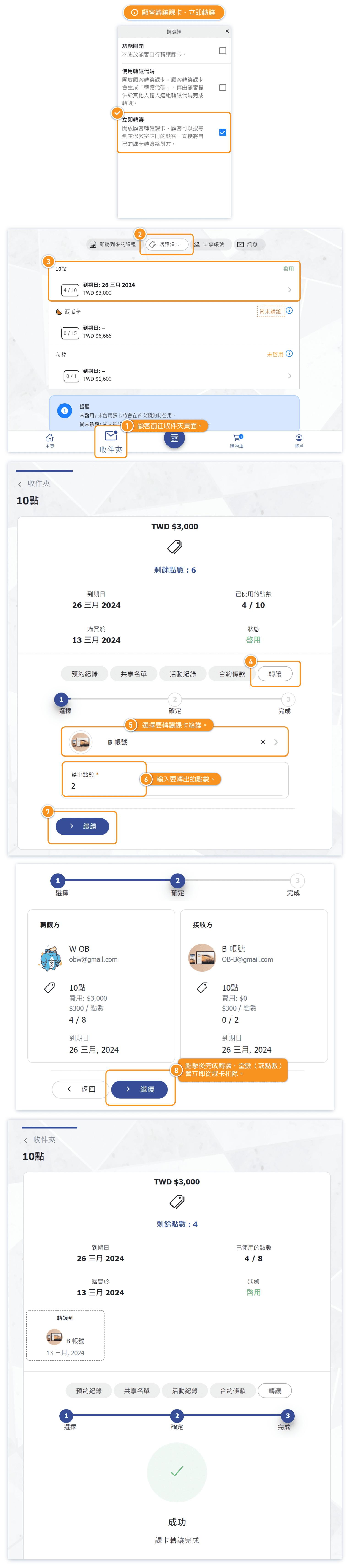
- Immediate Transfer: Enable it to allow customers to search for other registered customers in your studio and directly transfer their passes to them.
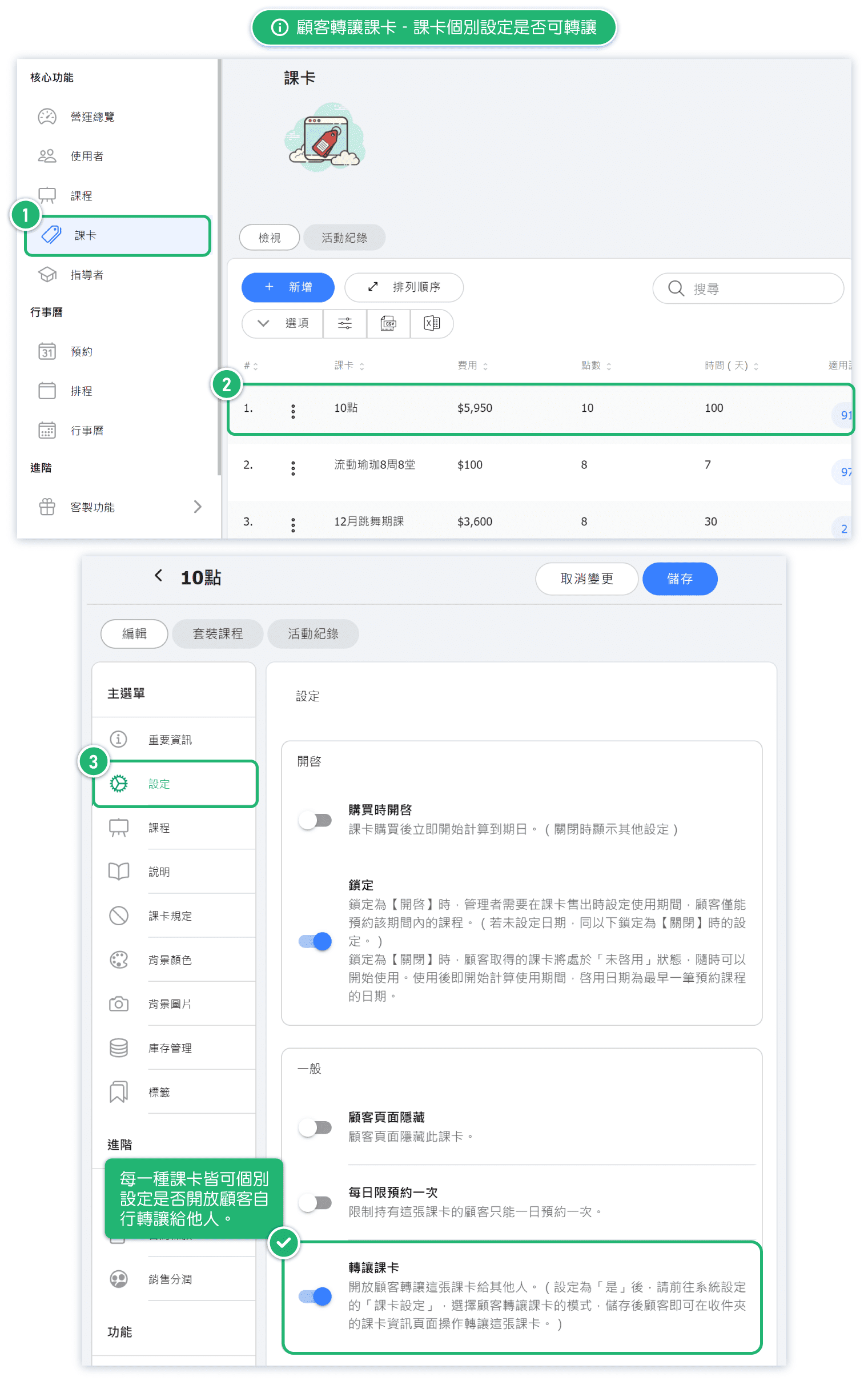
2. Allow or restrict customers to transfer certain passes.
You can decide whether each type of pass can be transferred by students to others.
For example, for anniversary sale passes, since they are usually sold at a discounted price, you may not allow students to transfer them to others.
In such cases, the "transfer pass" setting for anniversary sale passes would be disabled. Consequently, students who have purchased these passes will not be able to transfer them to others.
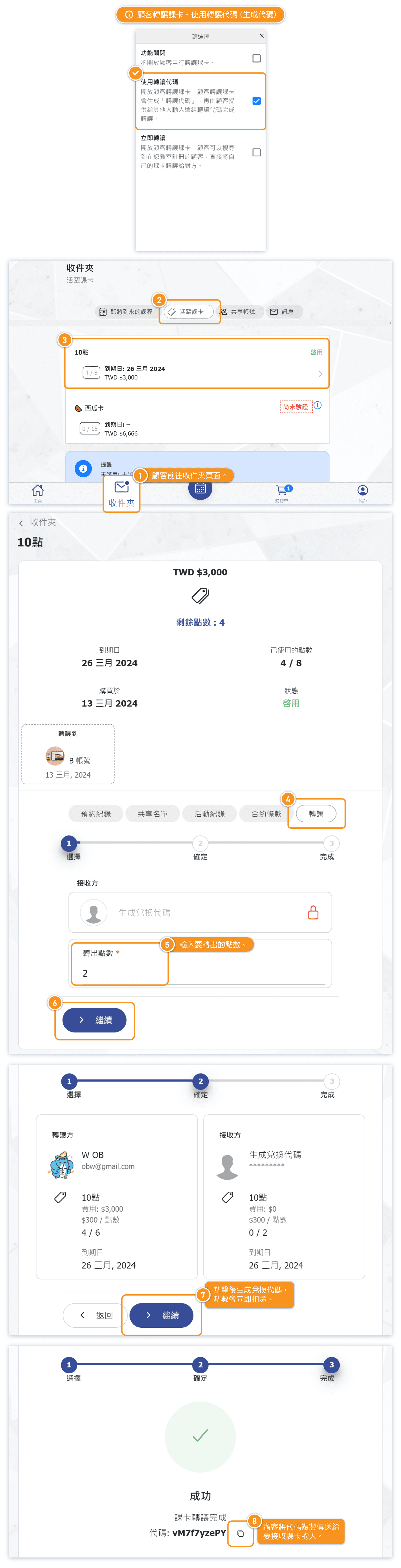
3-1. Transfer by Code - Generate code
Customer can go to the "Transfer" tab within their purchased pass details, where they can input the number of classes (or points) they wish to transfer out.
After confirmation, a "Transfer Code" will be generated. Customers can then copy this code and provide it to others.
The receiver only needs to input the transfer code to complete the transfer and get the pass.
*Please note that when generating a transfer code, the number of classes (or points) will be deducted immediately from the selected pass. Cancelling the transfer code will return the deducted classes (or points) back to the original pass.
3-2. Transfer by Code - Redeem Code
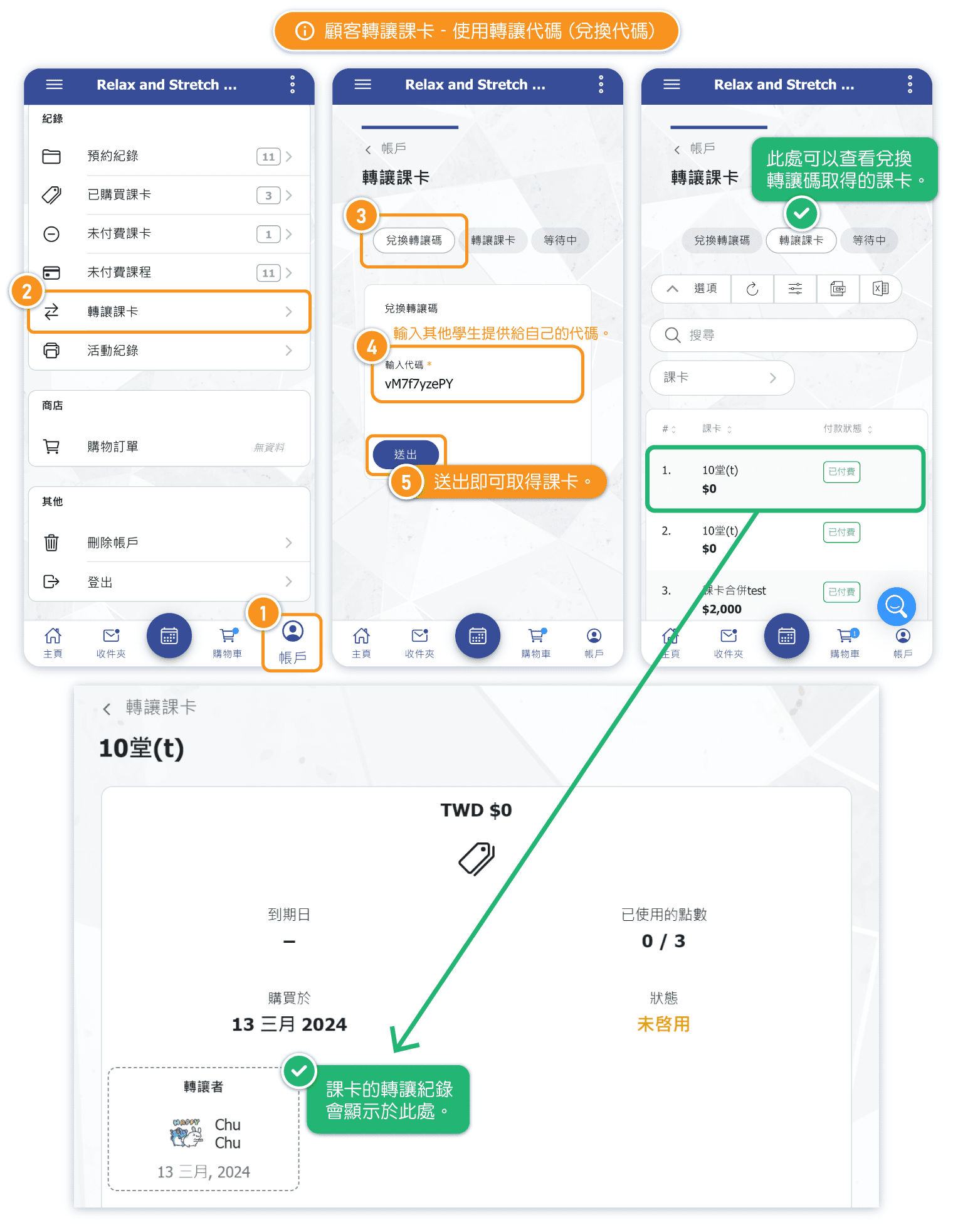
When customers obtain a transfer pass code from someone else, they can navigate to the "Transfer Pass" section under their account settings. There, they can enter or paste the received code into the "Redeem Transfer Code" field to acquire the pass.
*If the person who provide the code has cancelled the code, the code will immediately become invalid and cannot be redeemed.
*Each code can be redeemed only once.
*Once someone successfully redeems the code, the transferor will immediately receive a system message notification.
3-3. Transfer by Code (Cancel code)
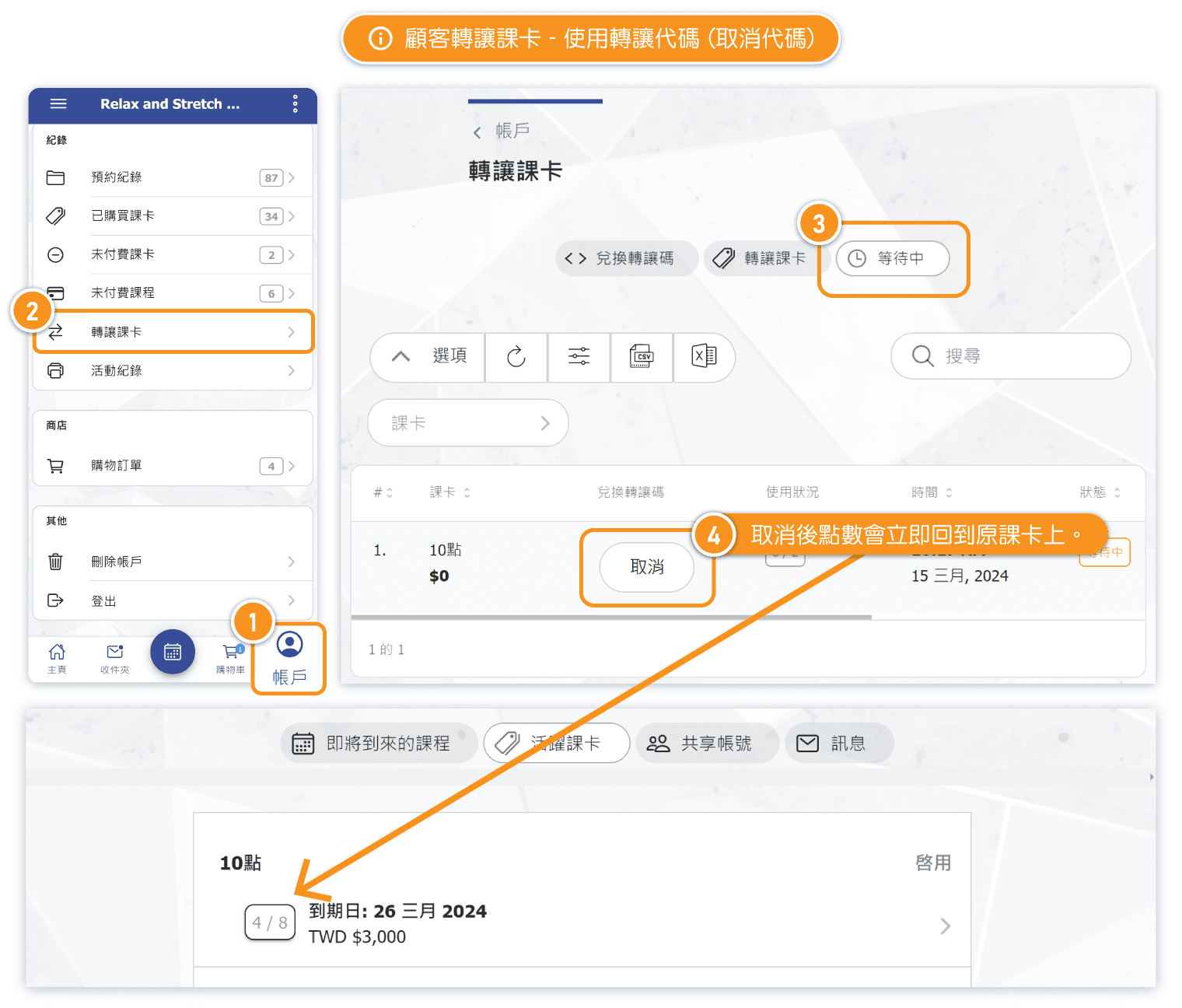
If a customer changes their mind and decides not to transfer the pass, they can go to "Account" -> "Transfer Pass", and cancel the transfer code while it's still under "pending".
In this case, the deducted sessions (or points) will be returned to the original pass.
4. Immediate Transfer
When customers transfer passes, they can search for registered customer in your studio and directly transfer their pass to them. Once the transfer is completed, it cannot be canceled, and the receiver will immediately receive the pass.
*When using immediate transfer, the pass receiver will receive a system message notification right after the transfer is completed.
5. Records of Pass Transfer
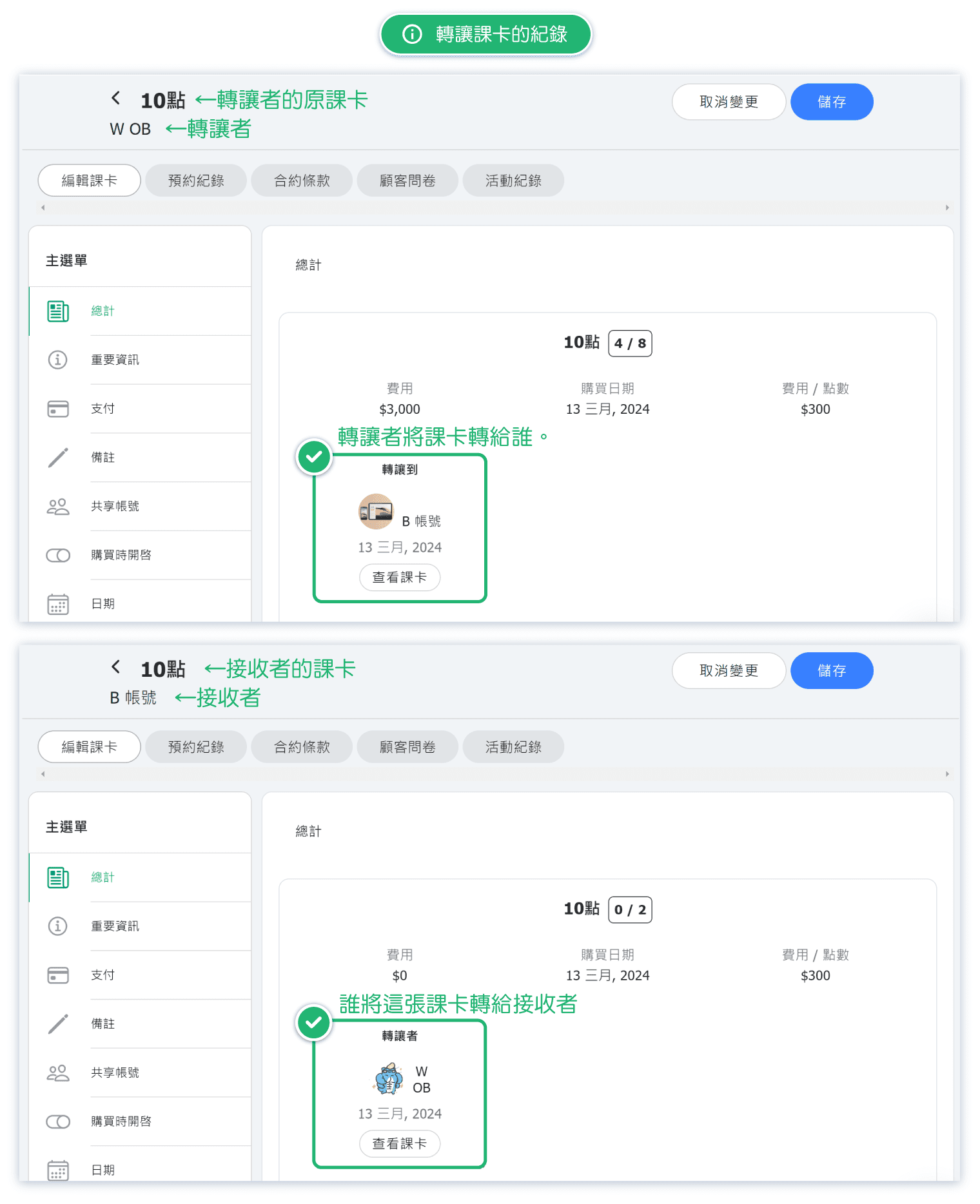
If a customer's pass has any transfer records, they will be displayed in the pass "summary" section. Customer can also view these records at any time other their pass.
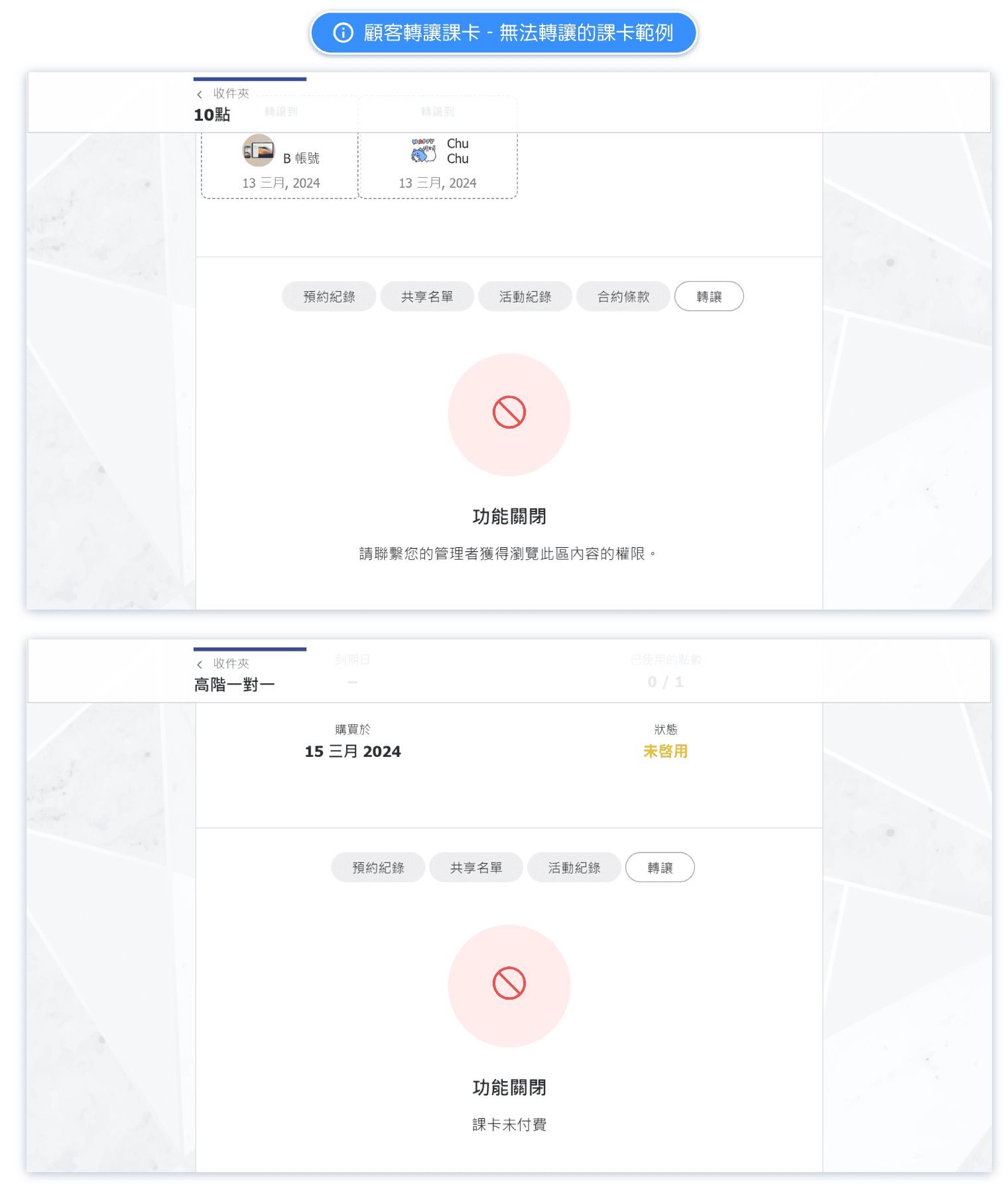
6. What types of passes cannot be transferred?
Passes that cannot be transferred include:
- Shared passes
- Passes purchased but not yet confirmed by the store
- Unpaid passes added to the customer's account by the administrator
- Expired passes
- Passes with no remaining sessions/points
- Passes that the store has set as not transferable
If a pass cannot be transferred, the pass will display a warning message. The warning message will vary depending on the reason why the pass cannot be transferred.